

BookRouter can turn any item into a professionally laid-out sheet or card — a full description page for a customer or a fair, or a compact shelf card. Send it straight to your printer or save it as a PDF.
Step one: Open Print / PDF
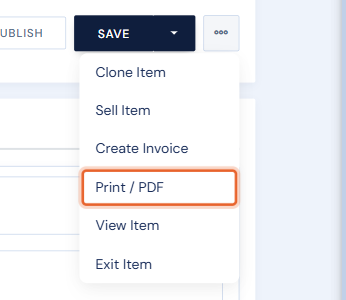
Open the item for editing (Manage Inventory › Edit), then open the … menu at the top right and choose Print / PDF.
Step two: Pick your options
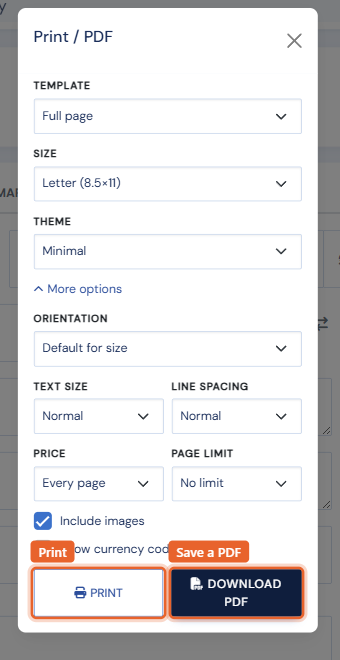
Choose your options in the window (they are remembered for next time):
- Template: a full description page or a compact card.
- Size: Letter, A4, A5, A6, or 4x6 / 5x8 cards.
- Theme: several built-in looks, plus My Brand if you have set up your brand colors and logo. See Document appearance & your brand.
- More options: orientation, text size and line spacing, whether and where the price prints, a page limit, item images on or off, and an optional currency code after the price.
Step three: Print or download
Click Print to send it to your printer, or Download PDF to save a file you can email.
Tip: bold and italic formatting from your item description carries through to the printed page, so citations and titles keep their styling.