

Bulk Edit changes many items at once: reprice a whole category, put a collection on hold, fix a publisher name across hundreds of records, or move items between catalogs. It is a new-platform feature with a safety net: a restore point is created before every destructive operation.
Turning it on
On Manage Inventory, open the … menu and choose Bulk Edit. A checkbox column appears on the list. (Bulk Edit is available to Admins by default; other roles can be granted it through the permissions system.)
Selecting items
Handpick: tick the boxes on the rows you want — your selection survives paging and sorting. Everything that matches: filter the list first (search, category, status, or a pasted SKU list), tick the header checkbox, then click Select all N results to act on the entire result set, even thousands of items. A bar appears at the bottom of the screen showing how many items are selected, with the Actions menu.
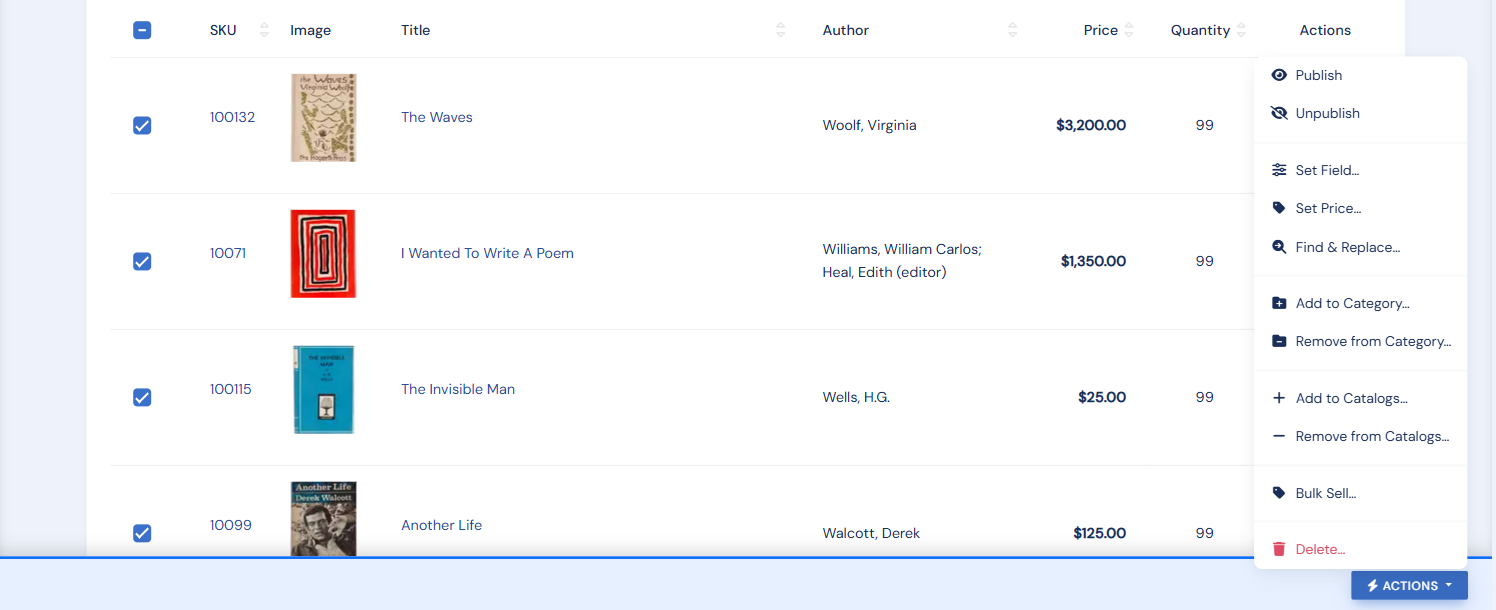
What you can do
- Publish / Unpublish
- Set Field: status, discount, and other flags
- Set Price: absolute, or adjust up/down by a percentage or amount
- Find & Replace on a chosen text field (title, description, author, publisher, keywords…)
- Add to / Remove from Categories and Catalogs
- Bulk Sell: record a sale for every selected item (date, channel, customer), writing proper sales-history records
- Delete (Admins only)
Preview before it happens
Every operation shows a confirmation first: how many items will be affected and, where it makes sense, a sample of before-and-after values. Find & Replace previews only the items that actually contain your search text. Nothing runs until you confirm.
Restore points
Before a destructive operation, BookRouter snapshots your inventory tables as a restore point. If a bulk change turns out wrong, restore it from Inventory Backup & Restore. Restore points also appear on that page alongside your manual backups.