

The Add / Edit Item form is the heart of the inventory system. It is where you catalogue a book — its details, price, images, categories, and where it lists.
How to find it
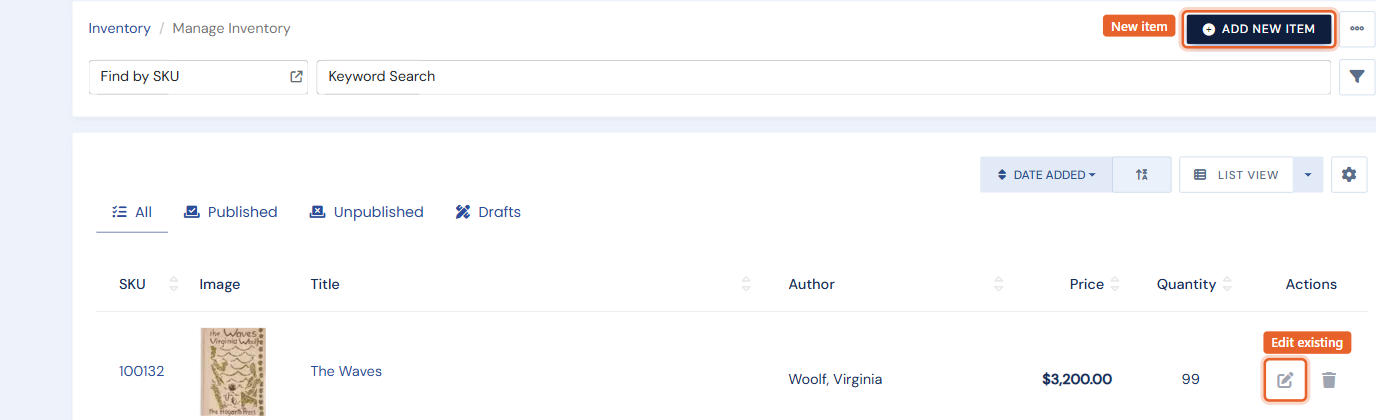
Open Inventory › Manage Inventory. Click Add New Item (top right) to create a new record, or the Edit (pencil) icon on any row to open an existing one.
The form at a glance
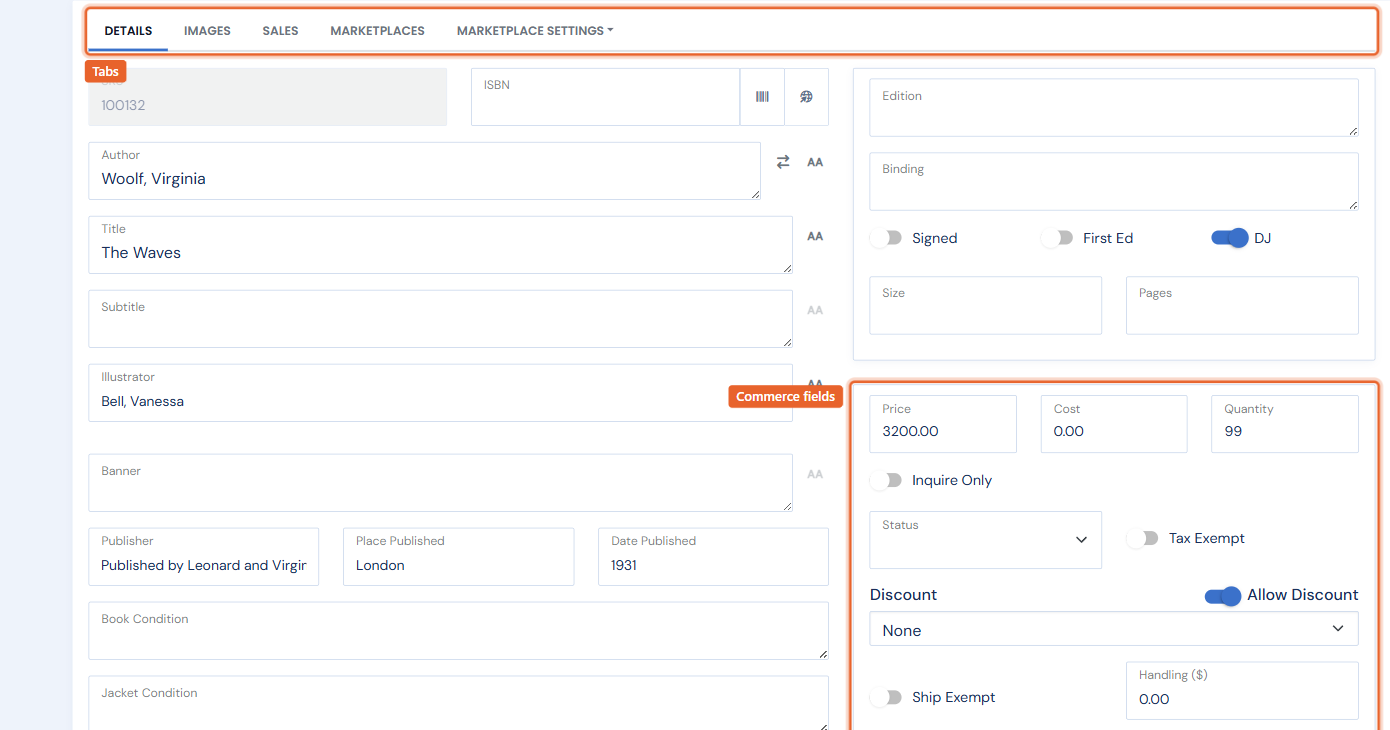
The left side holds the bibliographic details: SKU, ISBN (with automatic lookup — see Looking up book data by ISBN), title, author, publisher, edition, binding, condition, and the description editor. The right column holds the commerce fields: price, cost, quantity, status, discount, tax and shipping flags, and weight — plus the item's Categories and Catalogs (where it appears on your website) and its keywords.
Tabs across the top hold the rest:
- Details: the main form described above.
- Images: upload and arrange the item's photos. See How do I upload images?
- Sales: every recorded sale of this item, with edit and delete actions.
- Marketplaces and Marketplace Settings: which marketplaces the item routes to, plus per-marketplace attributes.
Saving
Save saves the item. The caret next to Save adds Save and Exit and Save and Add New — the fastest way to catalogue a stack of books. Unpublish saves the item without listing it, so you can finish cataloguing later. Autosave also protects you: the form saves your work in the background as you type, so an interrupted session does not lose the record.
Working faster
- New-item defaults: set your preferred starting quantity, status, discount, and binding for new items on the My Preferences page (the … menu on Manage Inventory).
- Hide fields you never use: the same preferences page lets you hide optional fields (size, pages, condition, and others). A hidden field automatically reappears on any item that already has data in it.
- Clone: for a near-duplicate of an existing item, open it and choose Clone Item from the … menu. See How do I clone an item?
Looking for a specific field? Price, cost, quantity, weight, handling, discount, tax and ship exempt, volumes, and meta-search visibility are all covered with screenshots in Editing item fields: common questions.