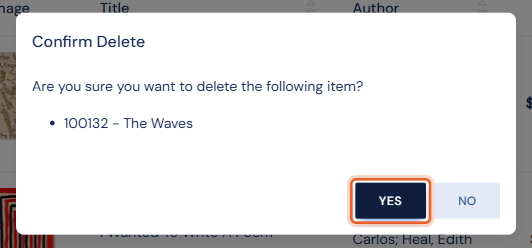
Deleting removes an item from your inventory and from your website. If the item has ever sold, consider marking it sold instead, so its sales history is kept. Here is how to delete an item.
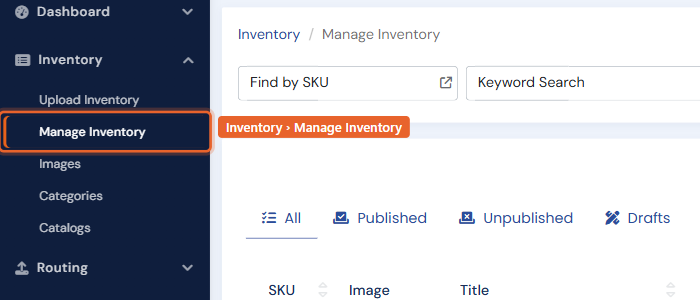
Step one: Open Manage Inventory
Click Manage Inventory under the Inventory heading in the left menu.
Step two: Find the item
Use Find by SKU or the Keyword Search box to locate the item. For more ways to narrow the list, click the filter icon beside the search box to open Advanced Search.

Step three: Click the delete icon
In the item's row, click the Delete (trash) icon in the Actions column.

Step four: Confirm the deletion
A Confirm Delete window asks you to confirm and names the item being removed. Click Yes to delete it, or No to keep it.