

Manage Inventory is built for finding things fast, whether you know the SKU, remember half a title, or want "everything in this category under $50 added since March."
The two search boxes
Find by SKU matches your item numbers exactly. Keyword Search looks across title, author, description, and the other text fields.

Advanced filters
Click the filter icon next to the keyword box to open the Advanced Filters panel: author, title, keywords, status, category, catalog, price and quantity ranges, attributes (first edition, signed, dust jacket, has photos, in stock, and more), and per-marketplace filters. Click Start Search to apply.
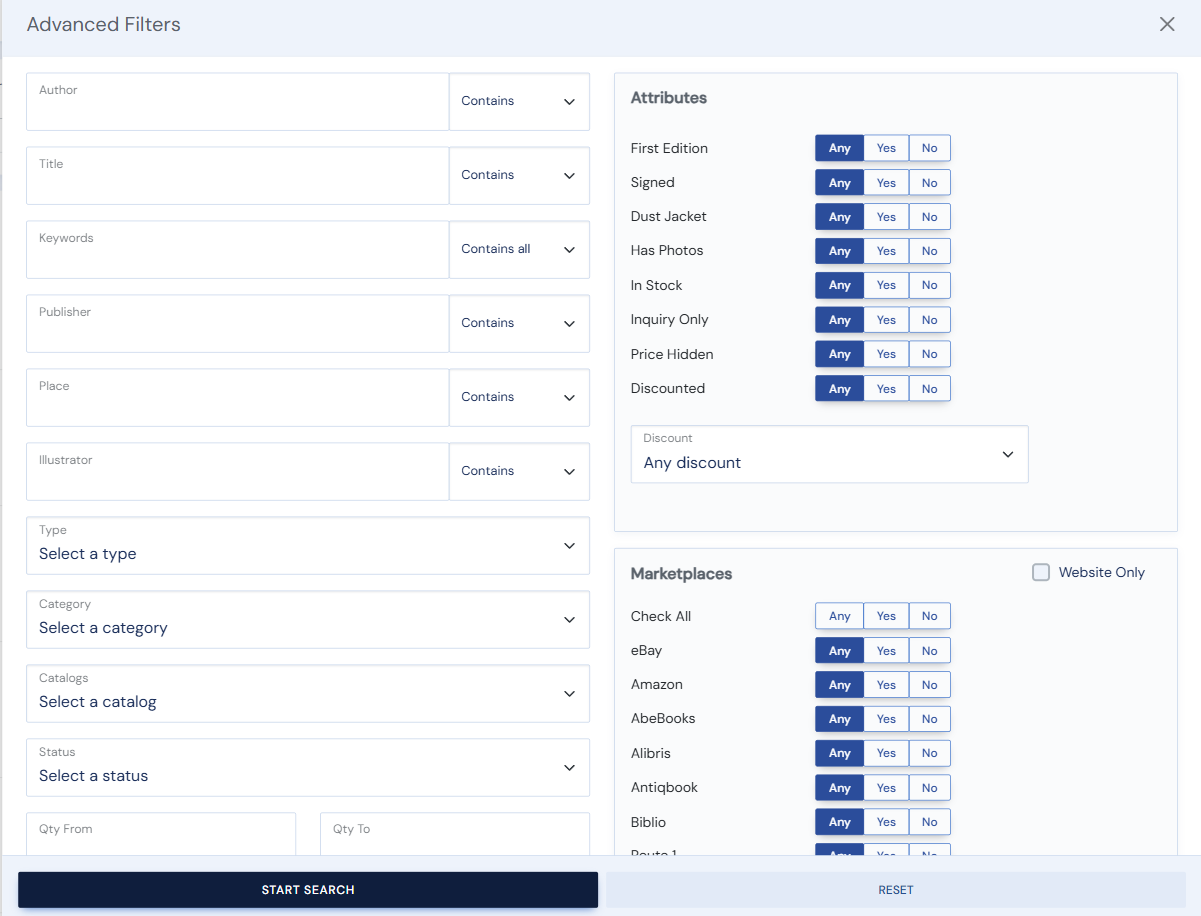
Active filters show as removable chips above the list, so you always know what you are looking at. Click the × on a chip to drop that filter, or Clear All to start over.

Find by SKU list
Have a list of SKUs from a spreadsheet or another program? Click the icon next to the Find by SKU field to open Find by SKU List, paste the whole list, and the view filters to exactly those items. It reports any SKUs that did not match. This pairs well with Bulk Edit: filter to your pasted list, then select all results and act on them.
Views and columns
The view toggle switches between the standard list and a classic catalog-style view. In list view, Change Columns (in the … menu) lets you choose and reorder the optional columns: condition, jacket condition, publisher, edition, place and date published. Apply the change, and if you like it click the save icon to make it your permanent layout.
Sorting defaults
The list sorts by date added (newest first) out of the box. Your preferred default sort, direction, and view live on My Preferences in the … menu.