Cloning copies an existing item into a brand-new record, so you can catalogue a near-duplicate — another copy, a different printing, a similar title — without re-entering everything. Here is how to clone an item.
Step one: Open Manage Inventory
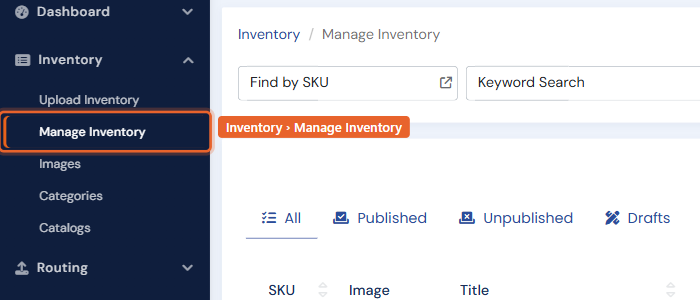
Click Manage Inventory under the Inventory heading in the left menu.
Step two: Find the item you want to clone
Use Find by SKU or the Keyword Search box to locate the item. For more ways to narrow the list, click the filter icon beside the search box to open Advanced Search.

Step three: Open the item
Click the Edit (pencil) icon in the Actions column at the end of the item's row to open its edit page.

Step four: Open more options
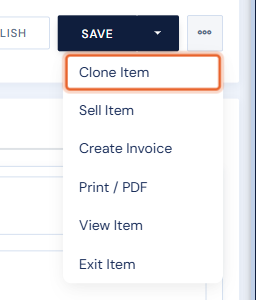
At the top-right of the edit page, click the … (three dots) button next to the Save button.

Step five: Choose Clone Item
Select Clone Item from the menu.
Step six: Confirm the clone
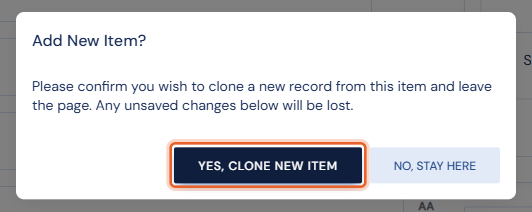
Click Yes, Clone New Item in the confirmation window. A new record opens, pre-filled from the original and ready for you to adjust and save.
Heads up: cloning leaves the current item, so any unsaved changes on it are discarded — save those first if you need them. The clone is a separate record with its own SKU; it is not saved until you save it.