

There are three ways to get item photos into BookRouter. Pick whichever fits how you work.
Option one: Directly to an item
The easiest way for most sellers. On an item's edit page, open the Images tab and drag your photos in. BookRouter names the files for you, so there is nothing to match up. See Upload images to an item.
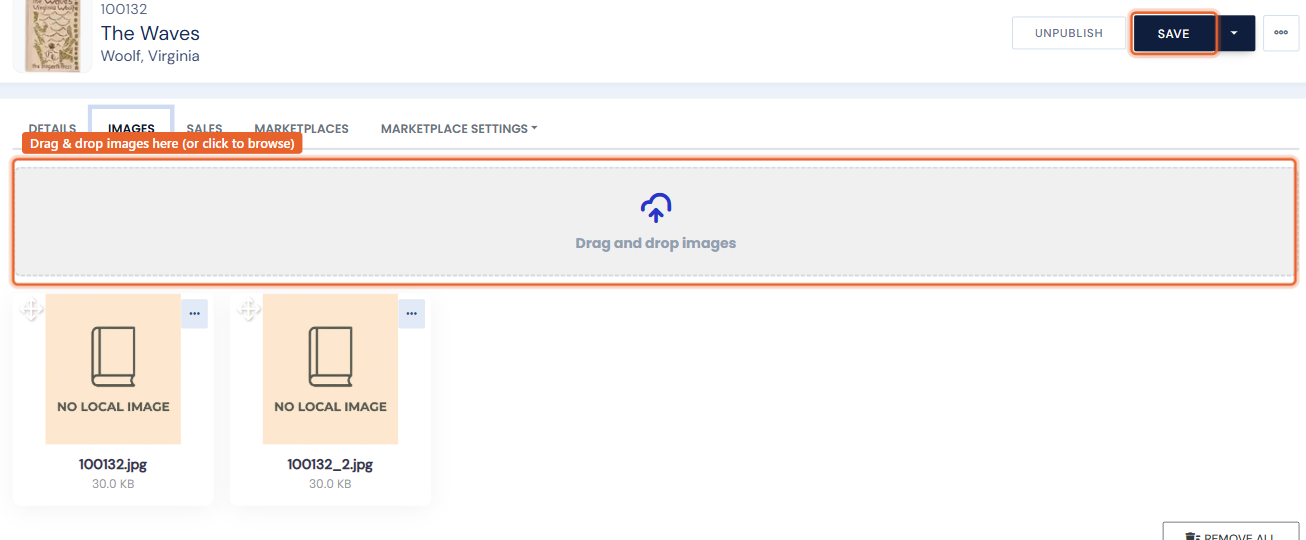
Option two: Bulk upload via browser
Loading a whole folder at once? Go to Inventory › Images and upload them together. Bulk uploads require the filename to match each item's SKU (see the naming rule below). See Bulk uploading images.
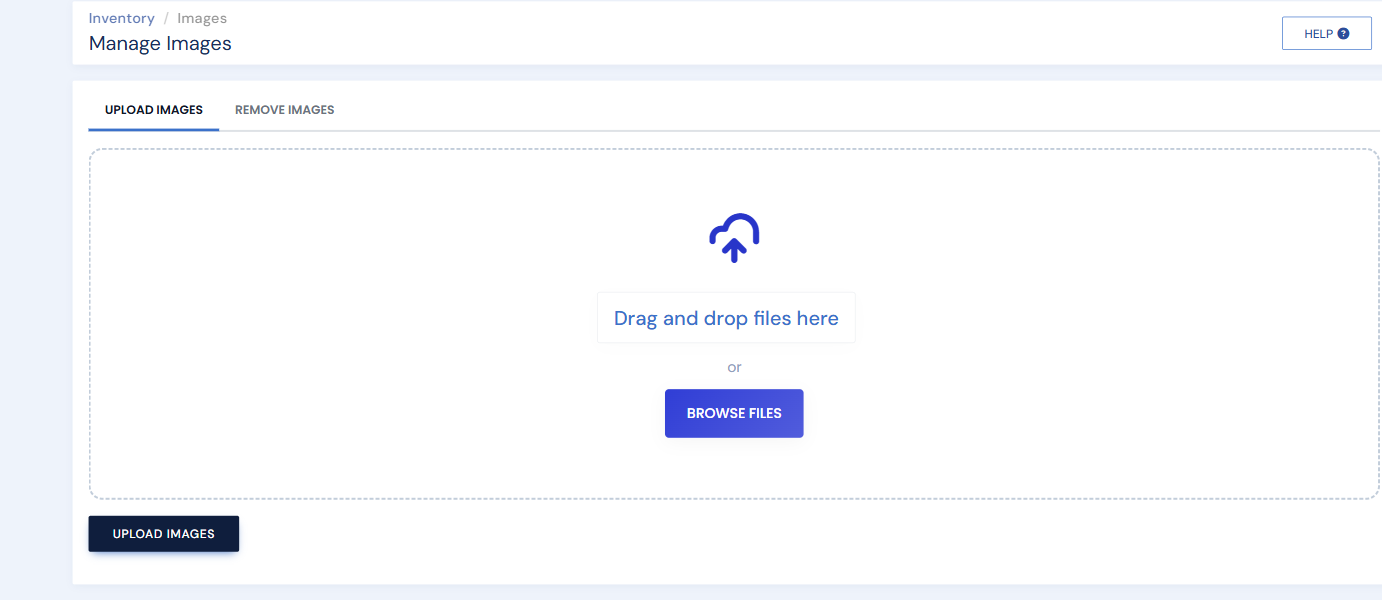
Option three: FTP
For very large libraries, you can FTP images to your site. Like bulk upload, FTP requires SKU-matched filenames. Contact support if you need FTP details.
Naming rule for bulk & FTP uploads: the file name must match the item's inventory number (SKU). Add an underscore and number for extra images.
Example — Book #12345: 12345.jpg or 12345_1.jpg (image 1), 12345_2.jpg (image 2), 12345_3.jpg (image 3), and so on. Full specs in Image requirements.