

If you used to paste a list of IDs into the old Bulk add to Catalog tool, here is how it works now. It is a two-step process on the Manage Inventory page: first you narrow the list down to the items you want using their IDs, then you use Bulk Edit to add that whole set to a catalog at once. The same steps work for categories, and for removing items just as well as adding them.
Step 1: Find your items by their ID list
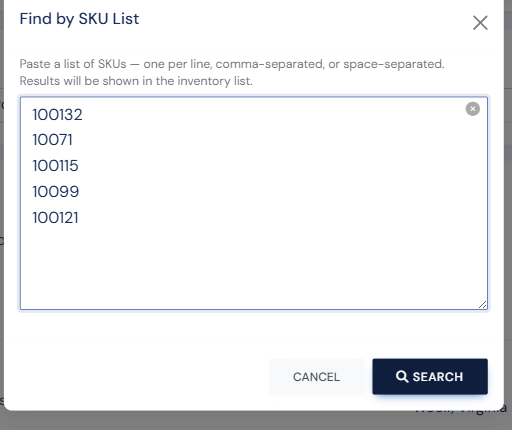
Go to Manage Inventory. Next to the Find by SKU box at the top of the list there is a small pop-out icon (its tooltip reads "Search by SKU list"). Click it to open the Find by SKU List window. Paste your item IDs (your SKUs) into the box — one per line, comma-separated, or space-separated — and click Search. The inventory list now shows only the items that matched. If any IDs were not found, they are reported so you can check them (a typo, or an item no longer in your inventory).
Step 2: Turn on Bulk Edit
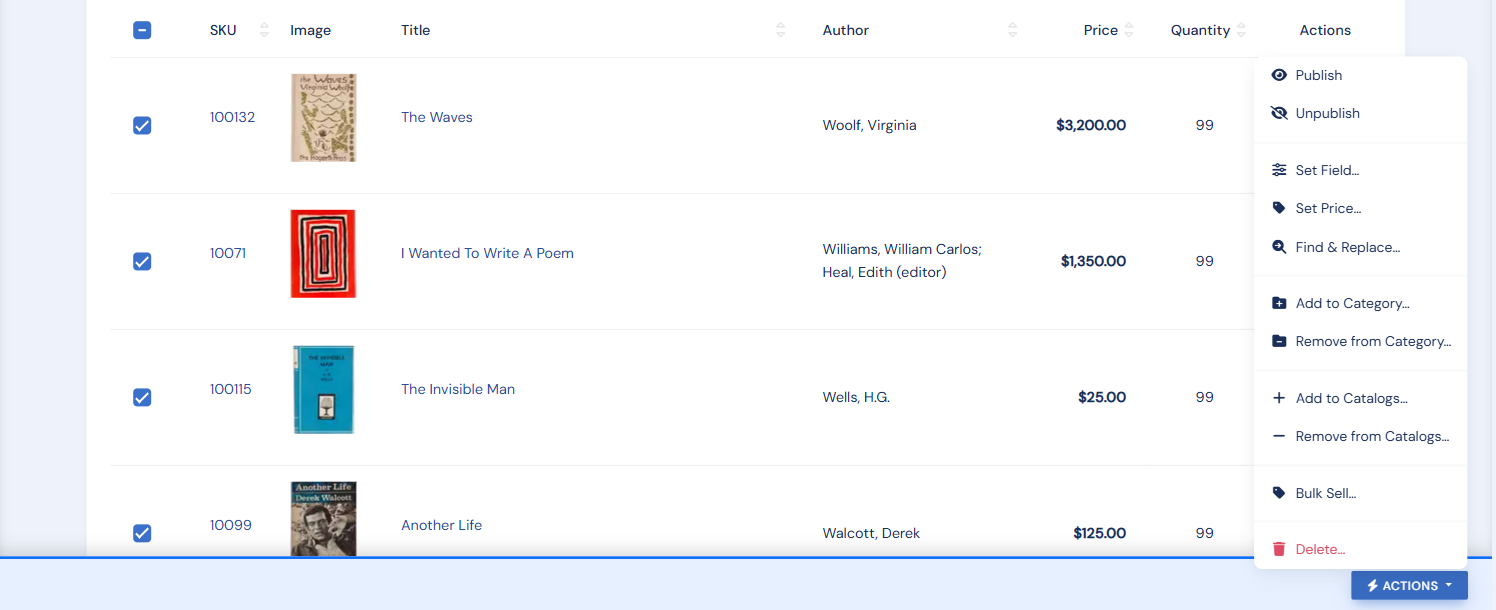
Open the gear menu (the … button in the inventory toolbar) and choose Bulk Edit. A checkbox column appears at the left of the list, and a bar appears at the bottom of the screen as soon as you select anything.
Step 3: Select the whole set
Click the checkbox in the column header to select every item on the page. If your list runs to more than one page, a Select all N results link appears — click it so the action applies to every matched item, not just the ones on screen.
Step 4: Add them to the catalog
In the bar at the bottom, open the Actions menu and choose Add to Catalogs…. Pick the catalog (or catalogs) you want, and review the confirmation, which tells you how many items will be affected. Click Apply to add them all in one pass.
When you are finished, open the gear menu again and choose Exit Bulk Edit to hide the checkboxes and return to the normal list.
- Categories work the same way. Choose Add to Category… in the Actions menu instead of Add to Catalogs.
- Removing is just as easy. The Actions menu also has Remove from Catalogs… and Remove from Category…, using the same selection you built in steps 1–3.
- Nothing is lost by accident. Before a bulk change the system creates a restore point, so a mistaken change can be rolled back from Settings → Data → Inventory Backup & Restore.
- You are not limited to an ID list. Any inventory search or Advanced Filter builds a set the same way, so you can add "everything by this author" to a catalog with the same Bulk Edit steps.