

Normally BookRouter™ sends each marketplace only what changed: new items, edits, and removals. A purge sends the whole of your active inventory as one fresh file instead, and the marketplace replaces its copy of your listings with it. You can purge one marketplace from its settings page, or several at once from the Marketplaces list.
When to purge
- A marketplace's listings no longer match your inventory: books that sold are still listed there, or books you have are missing.
- You made large changes while a marketplace was paused (a big import, a clean-out) and want it to catch up in one go.
- You have just connected a marketplace and want to send your first full upload.
You do not need to purge for everyday changes: those go out on their own with each routing run.
A purge replaces everything the marketplace has with your current BookRouter inventory. Make sure your inventory here is up to date first. Anything listed directly on the marketplace that is not in BookRouter is removed.
Which marketplaces can be purged
The marketplaces that take inventory files: AbeBooks, Biblio, Alibris, Antiqbook and your custom routes. Amazon and eBay are updated listing by listing through their own connections, so they never appear in a purge; on Amazon and eBay, Revise All on the marketplace's settings page plays the same part.
Purge one marketplace
- Open Routing > Marketplaces and click the marketplace's Edit icon.
- Under Sync Rules, click Trigger Purge and confirm.
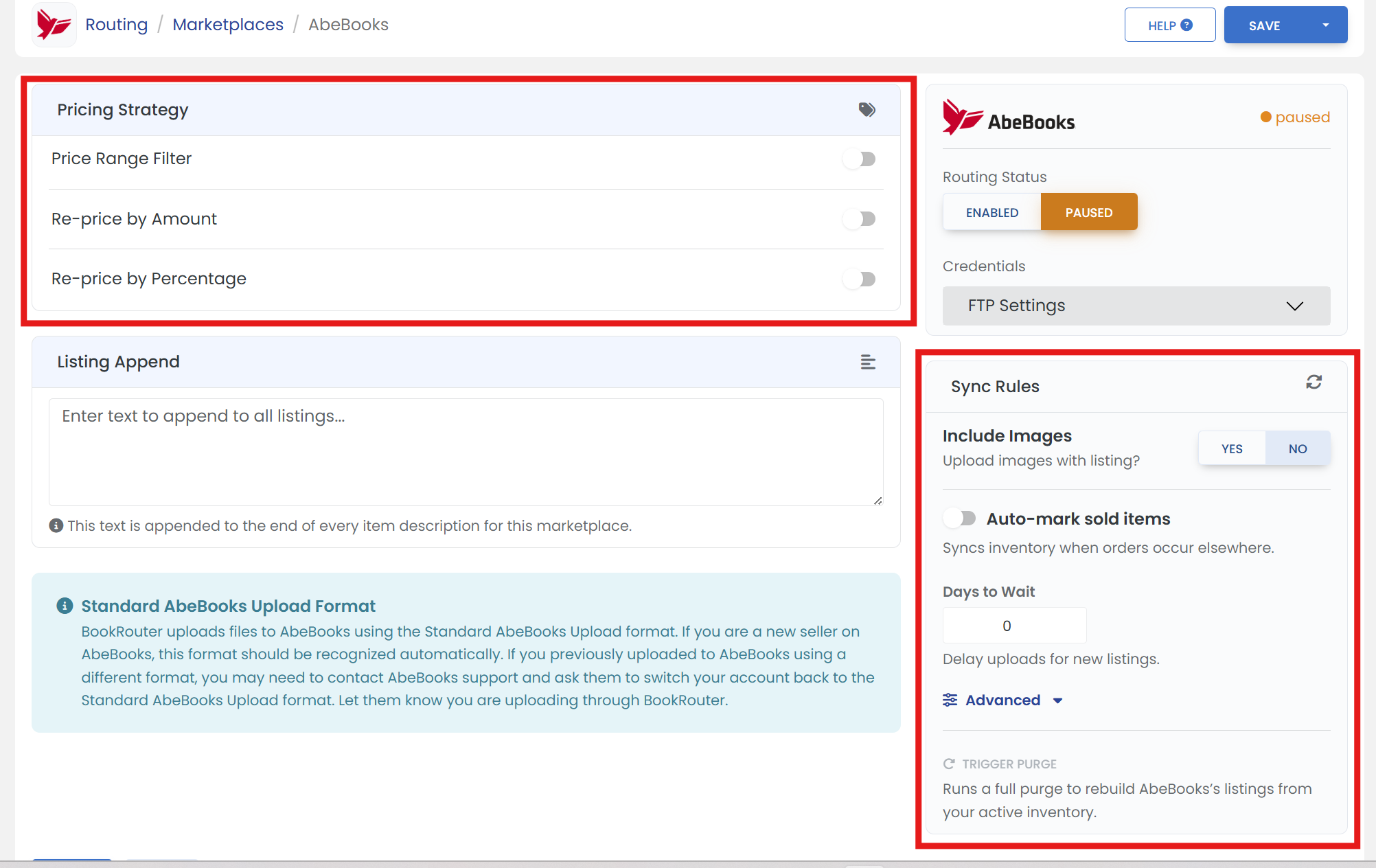
Trigger Purge is only available while the marketplace is enabled and routing.
Purge several marketplaces at once
- Open Routing > Marketplaces (or Routing > Custom Routing for your custom routes).
- Click the gear button at the top right of the list and choose Trigger Purges.
- The window lists every marketplace that can be purged. The ones routing now are ticked; untick any you want to leave alone, or use All marketplaces to tick or untick them all.
- Click Trigger Purges. A message names the marketplaces that were queued.
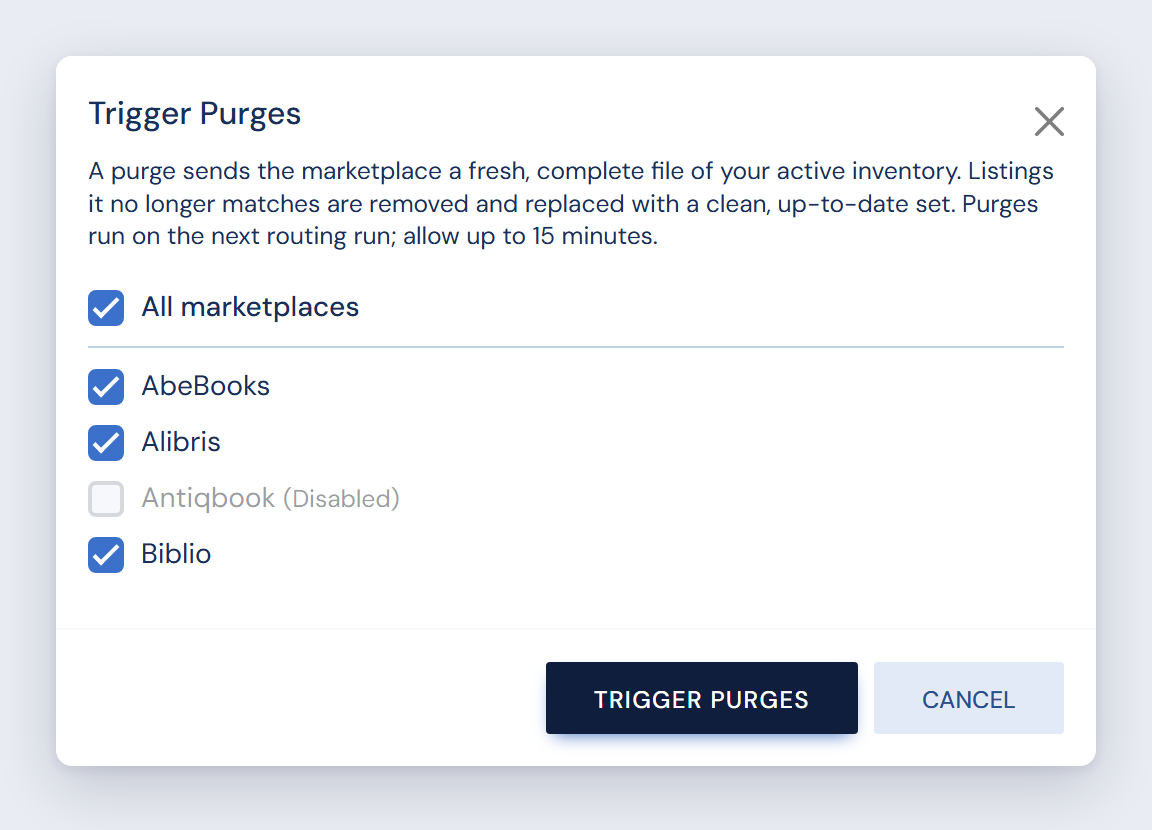 AbeBooks, Alibris and Biblio will be purged. Antiqbook is greyed out because it is disabled.
A marketplace shows greyed out, with the reason beside it, when a purge would do nothing right now:
- Disabled, Paused or Not Connected: routing is not sending to it. Enable or connect it on its settings page first.
- Purge already queued: a purge is waiting for the next routing run. There is nothing more to do.
What happens next
Purges go out on the next routing run, all of them together; allow up to 15 minutes. The Last Run column on the Marketplaces list updates when each file has been sent. Each marketplace then processes the file on its own schedule. After the purge, routing goes back to sending only what changes.
Questions
A marketplace is not in the Trigger Purges window at all.
It is one that cannot be purged (Amazon, eBay), or a site like viaLibri that reads your website rather than receiving files. Everything else on the list appears, greyed out if it cannot be purged right now.
Is there a purge for all my marketplaces in one click?
Yes: Trigger Purges with All marketplaces ticked, which it is when the window opens.