

BookRouter™ sends your inventory to AbeBooks as an upload file and, with the same username and API key, downloads your AbeBooks orders and marks those books sold on your website and your other venues. Setting it up takes four steps: check whether AbeBooks needs to hear from you (most sellers can skip this), get your username and API key from AbeBooks, enter them in BookRouter, and switch AbeBooks on.
What you will need
- Your AbeBooks seller account and its login.
- About fifteen minutes. If you already upload files to AbeBooks from another program, also allow time for a reply from AbeBooks support (Step 1).
Step 1: Do you need to contact AbeBooks?
BookRouter sends your listings in the AbeBooks Standard upload format, AbeBooks' own default format. Whether AbeBooks needs to hear from you depends on how you have listed there until now:
- You are new to selling on AbeBooks, or you have only ever added listings by hand on the AbeBooks site: you do not need to contact AbeBooks. It recognizes the Standard format automatically. Go straight to Step 2.
- You already upload inventory files to AbeBooks from another program (HomeBase, BookHound, or another listing service) and AbeBooks set your account up for that program's format: ask AbeBooks support to switch your account to the Standard upload format, and leave AbeBooks paused in BookRouter until they confirm.
If you have never asked AbeBooks to set your account up for a particular file format, you do not need to write to them.
How to ask AbeBooks to switch your account to the Standard format
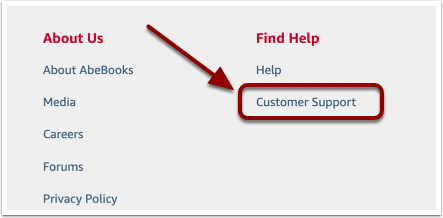
The web form (AbeBooks answers it more consistently than email): sign in at AbeBooks.com, scroll to the footer and click Customer Support.
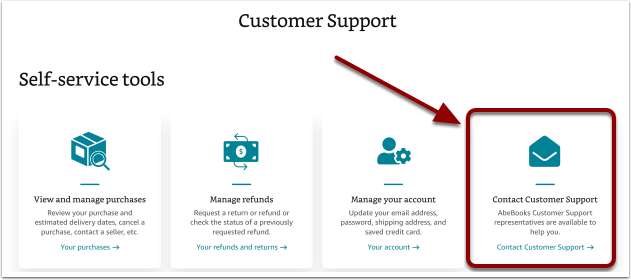
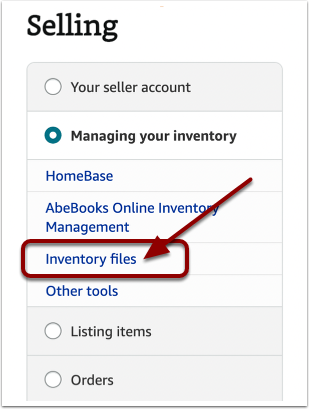
Under Self-service tools, click Contact Customer Support, then Selling, Managing your inventory and Inventory files.
Email: write to seller@support.abebooks.com from the email address registered with your AbeBooks account; AbeBooks does not act on email from any other address.
Copy this message into the form or the email:
Dear AbeBooks Support,
My inventory files now come from BookRouter in the AbeBooks Standard upload format, as described here: https://support.abebooks.com/selling/s/article/required-data-structure?language=en_US
Please switch my account to the Standard format and let me know when that is done, so I can start uploading.
My AbeBooks User ID: ________
Thank you,
[your name]
Step 2: Get your username and API key from AbeBooks
Your AbeBooks website login is not what BookRouter uses. BookRouter signs in to AbeBooks with your AbeBooks User ID and an API key.
Your username: the AbeBooks User ID
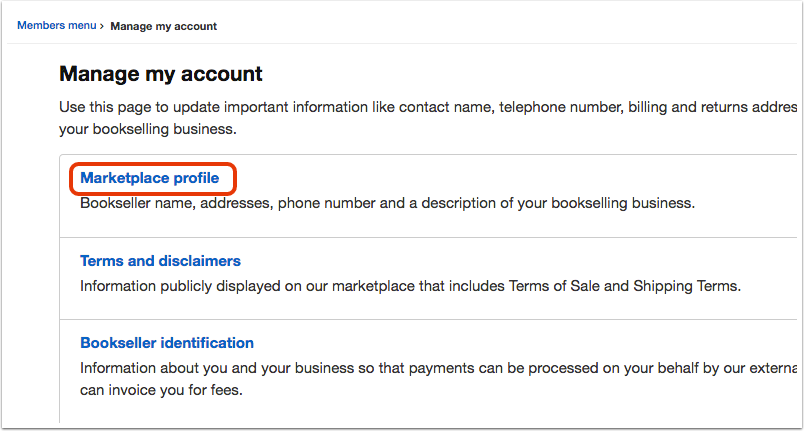
Sign in to AbeBooks and scroll down to the Members Menu. Under My Personal Information, click Account Details, then Marketplace Profile.
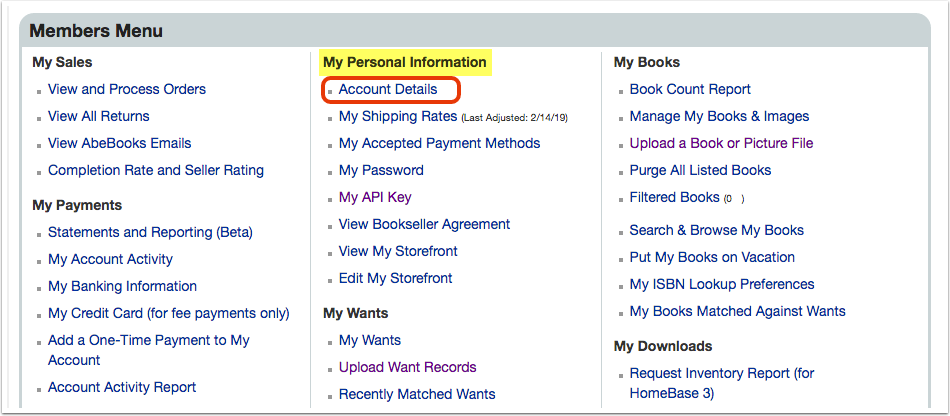
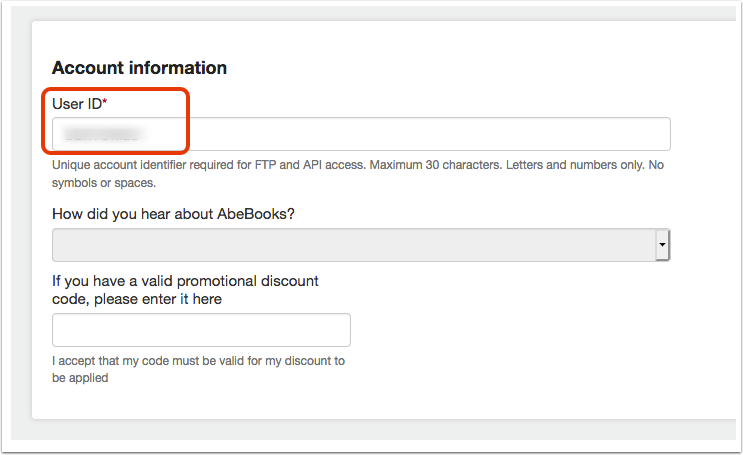
Scroll down to Account information. The User ID there is your username.
Your API key, allowed both inventory and orders
- In your AbeBooks account, open API & FTP Credentials.
- Copy your key. If you do not have one yet, create it there.
- Edit the key's Authorized Services and make sure both Inventory FTP (your listings) and Order Update API (your orders) are ticked. Leave the other services as they are. Save.
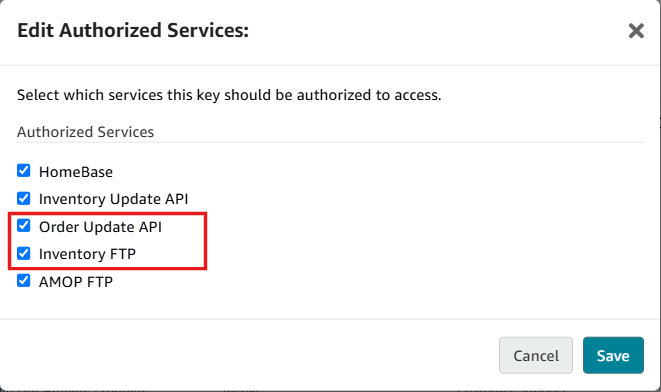
Why both services matter. AbeBooks lets each key choose which services it may use. A key allowed only Inventory FTP still uploads your listings, but BookRouter cannot download a single AbeBooks order with it: your orders never arrive in BookRouter and the sold books stay listed on your website and other venues. This is the most common reason AbeBooks orders stop downloading, and you can fix it yourself under Authorized Services at any time; the key itself does not change.
If you create a new key, the old one stops working right away. Enter the new key in BookRouter (Step 3) straight after, and in any other program that used the old one.
Step 3: Enter them in BookRouter
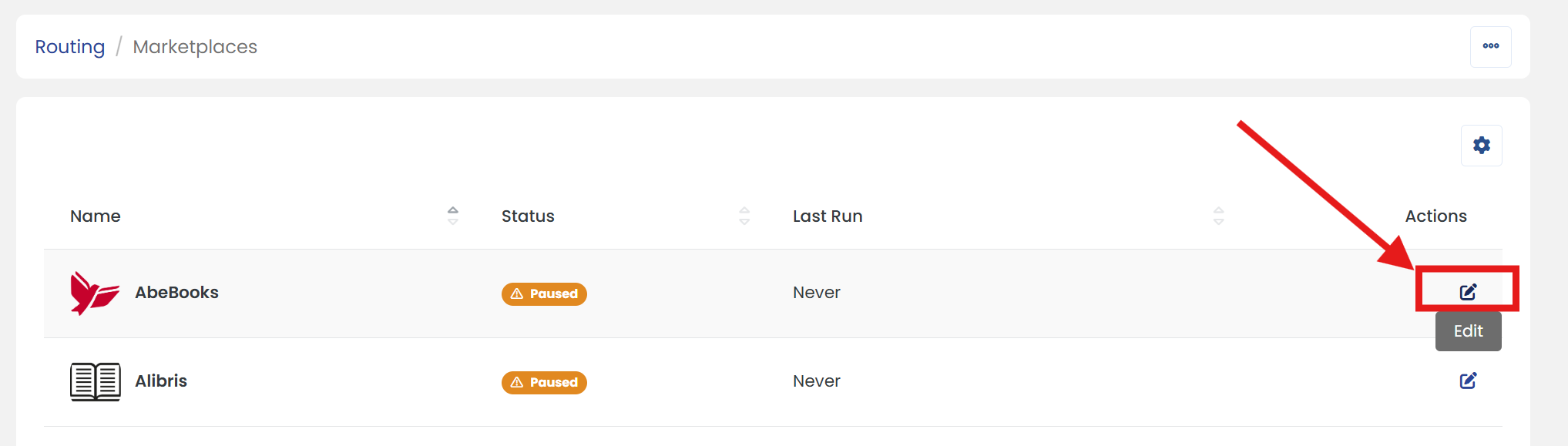
In BookRouter, open Routing > Marketplaces.
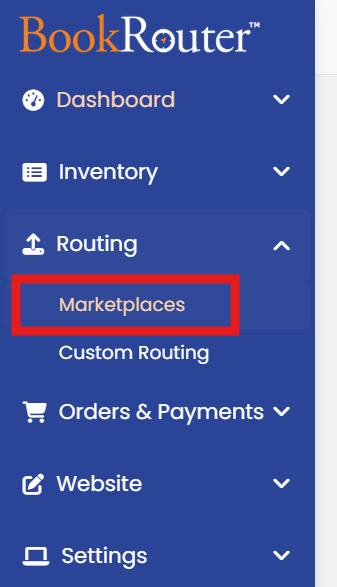
Find AbeBooks in the list and click its Edit icon.
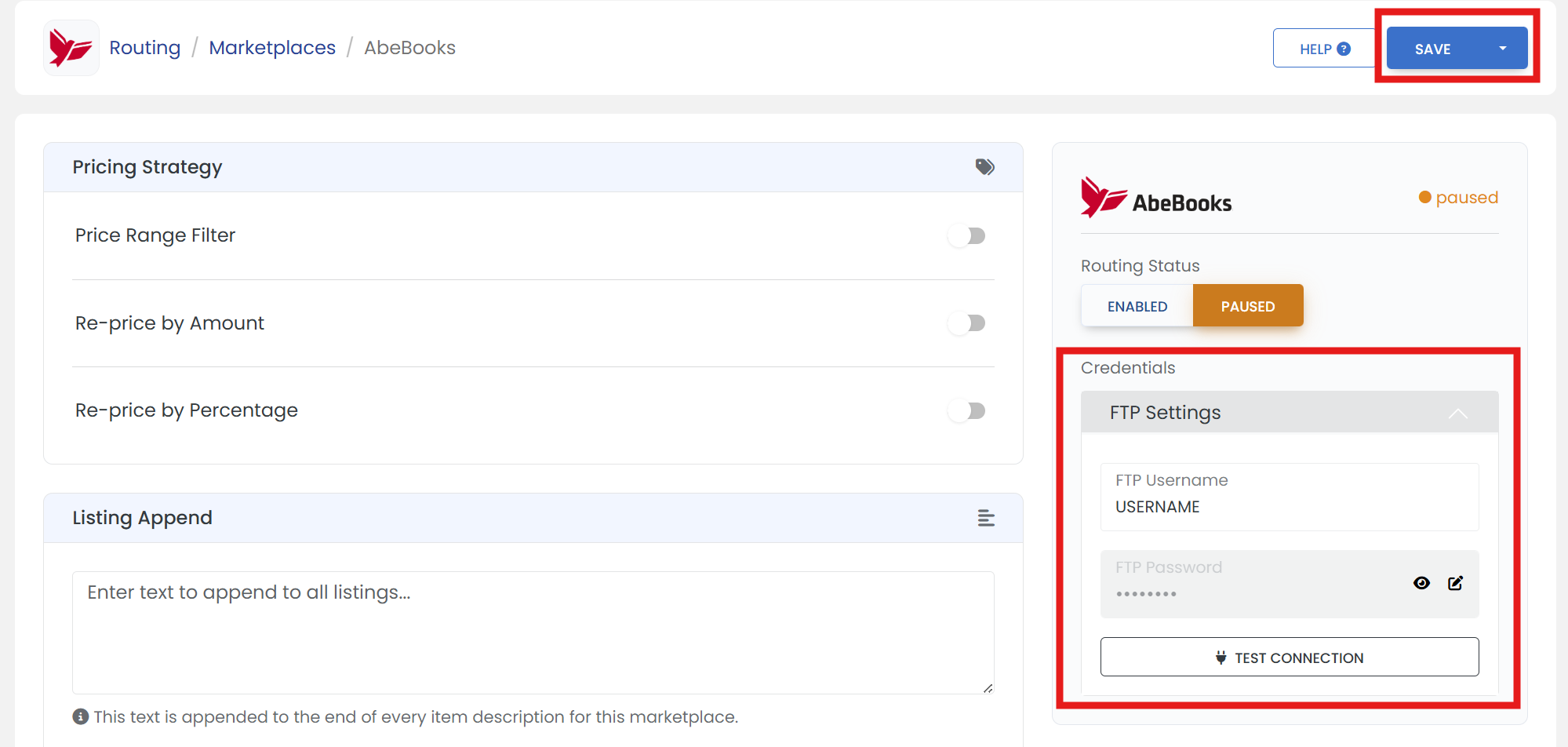
Under Credentials, open FTP Settings and enter:
- FTP Username: your AbeBooks User ID.
- FTP Password: your API key.
Click Test Connection, then SAVE. If you are waiting for AbeBooks to switch your format (Step 1), leave Routing Status on Paused for now.
Test Connection checks the upload login only. Order access is checked when BookRouter next asks AbeBooks for new orders. If the AbeBooks page later shows, in red under Credentials, that AbeBooks refuses your login for orders, go back to Authorized Services (Step 2) and tick Order Update API for the key.
Step 4: Switch AbeBooks on and send your first upload
Before you start, look over the Pricing Strategy and Listing Append cards: they change the price and description AbeBooks receives for every item. When you are ready:
- Set Routing Status to Enabled.
- Under Sync Rules, set Include Images to Yes and turn on Auto-mark sold items (it marks a book sold here when it sells on AbeBooks, so it comes off your other venues).
- Click SAVE.
- Then click Trigger Purge under Sync Rules to send your complete inventory to AbeBooks as one fresh file.
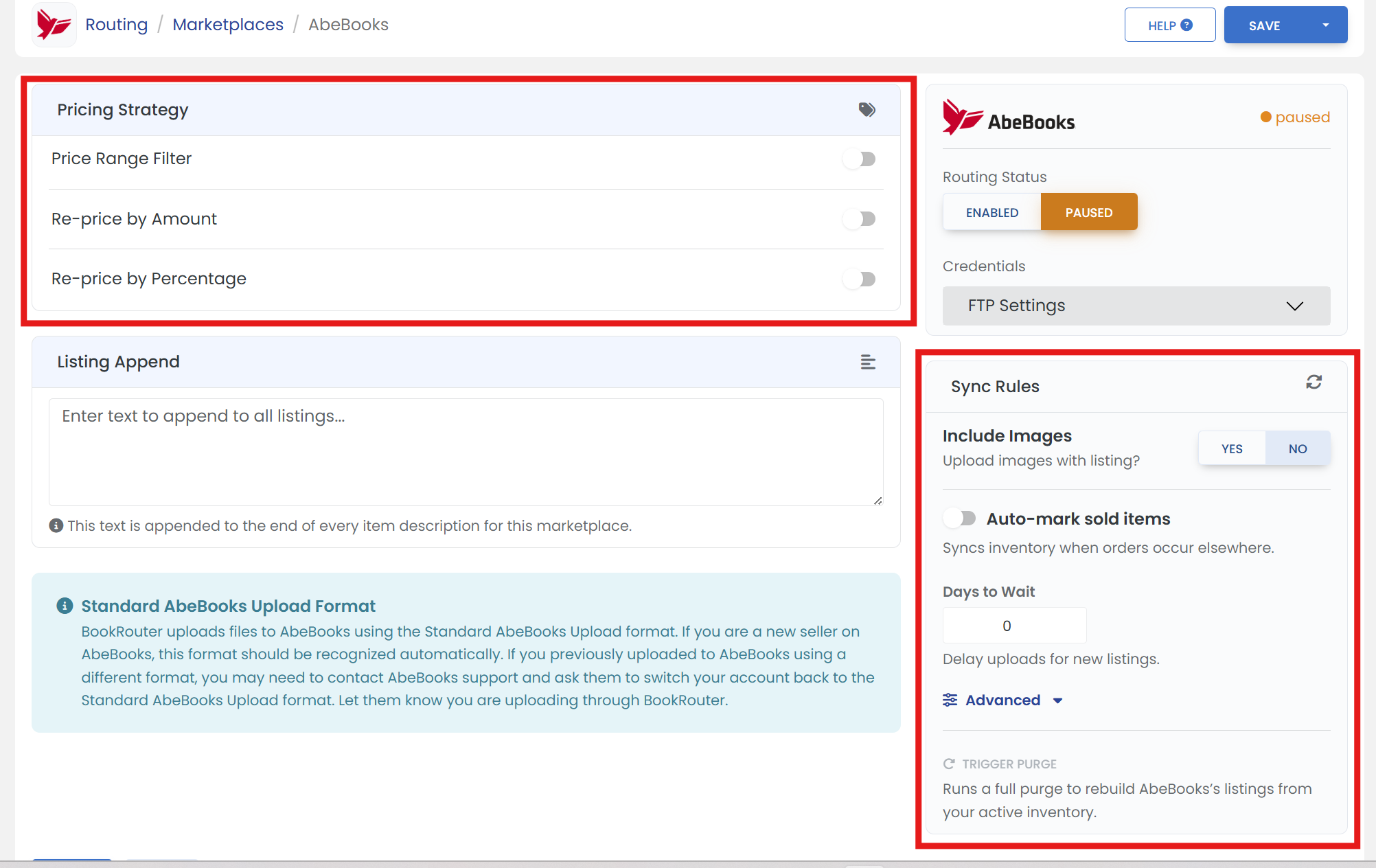
A purge replaces everything listed in your AbeBooks account with your current BookRouter inventory. Only trigger it once your inventory here is up to date.
After the first upload, BookRouter sends AbeBooks only what changes (new items, edits, removals) as it happens, and checks AbeBooks for new orders about every ten minutes.
AbeBooks settings for one item
Each item can carry its own AbeBooks shipping template and seller catalogs. Open the item (Inventory > Manage Inventory > Edit) and open its AbeBooks panel from the item's marketplace settings. Every field there is optional: leave it blank and the item gets what BookRouter normally sends. Click SAVE in the panel; the item goes back to AbeBooks with the next upload.
Shipping Template ID
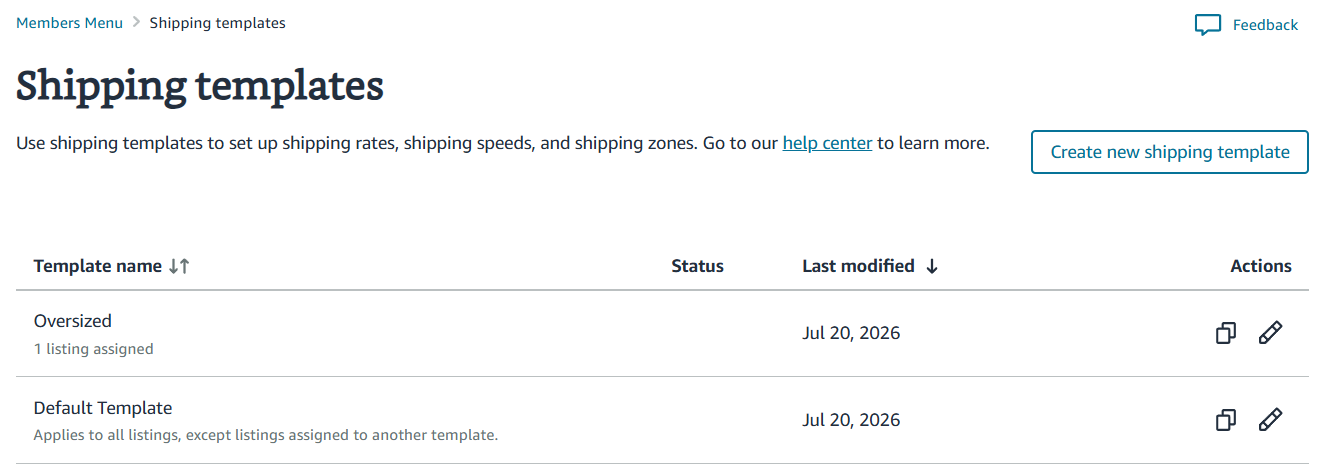
AbeBooks shipping templates hold your shipping rates, speeds and zones. Your Default Template applies to every listing, except listings assigned to another template. To charge differently for one item (an oversized folio, a heavy set), create a template for it at AbeBooks and put the template's ID on the item.
Finding a template's ID:
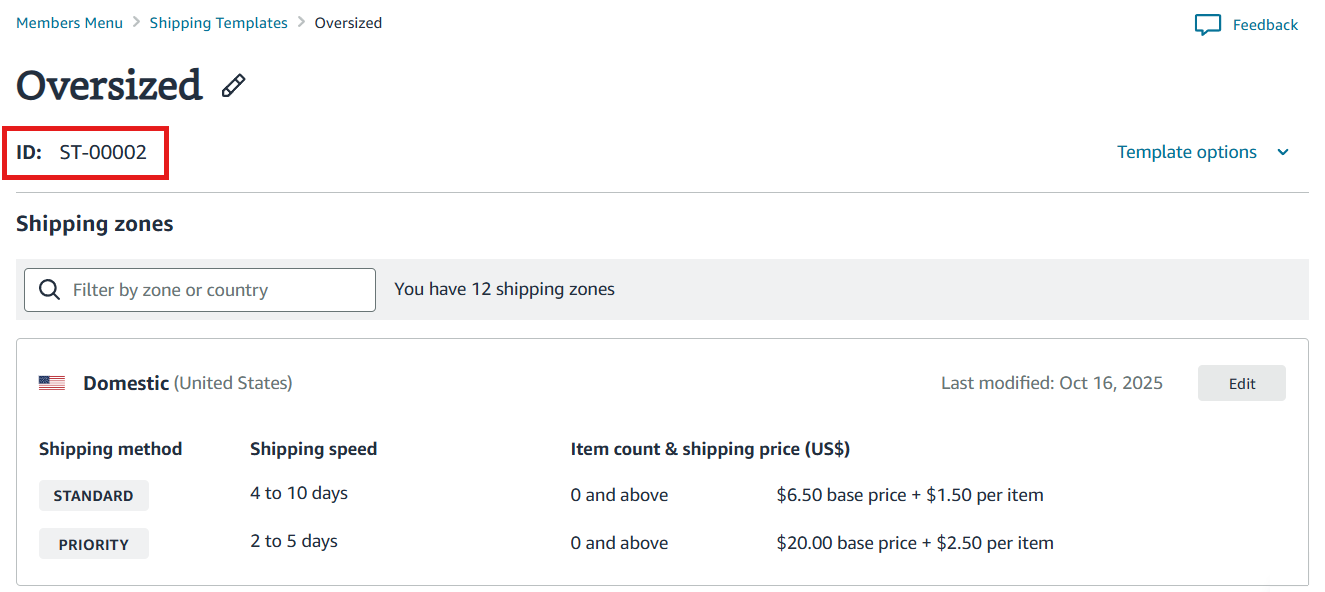
- Sign in at AbeBooks and open My Account > Members Menu > Shipping templates.
- Click the template you want.
- Copy the ID shown under its name. It starts with ST-, for example ST-00002.
Paste that ID into Shipping Template ID on the item. Good to know:
- Enter the ID, not the template's name. The panel warns you when what you typed does not look like an ID, and tidies small slips (st 00002 is saved as ST-00002).
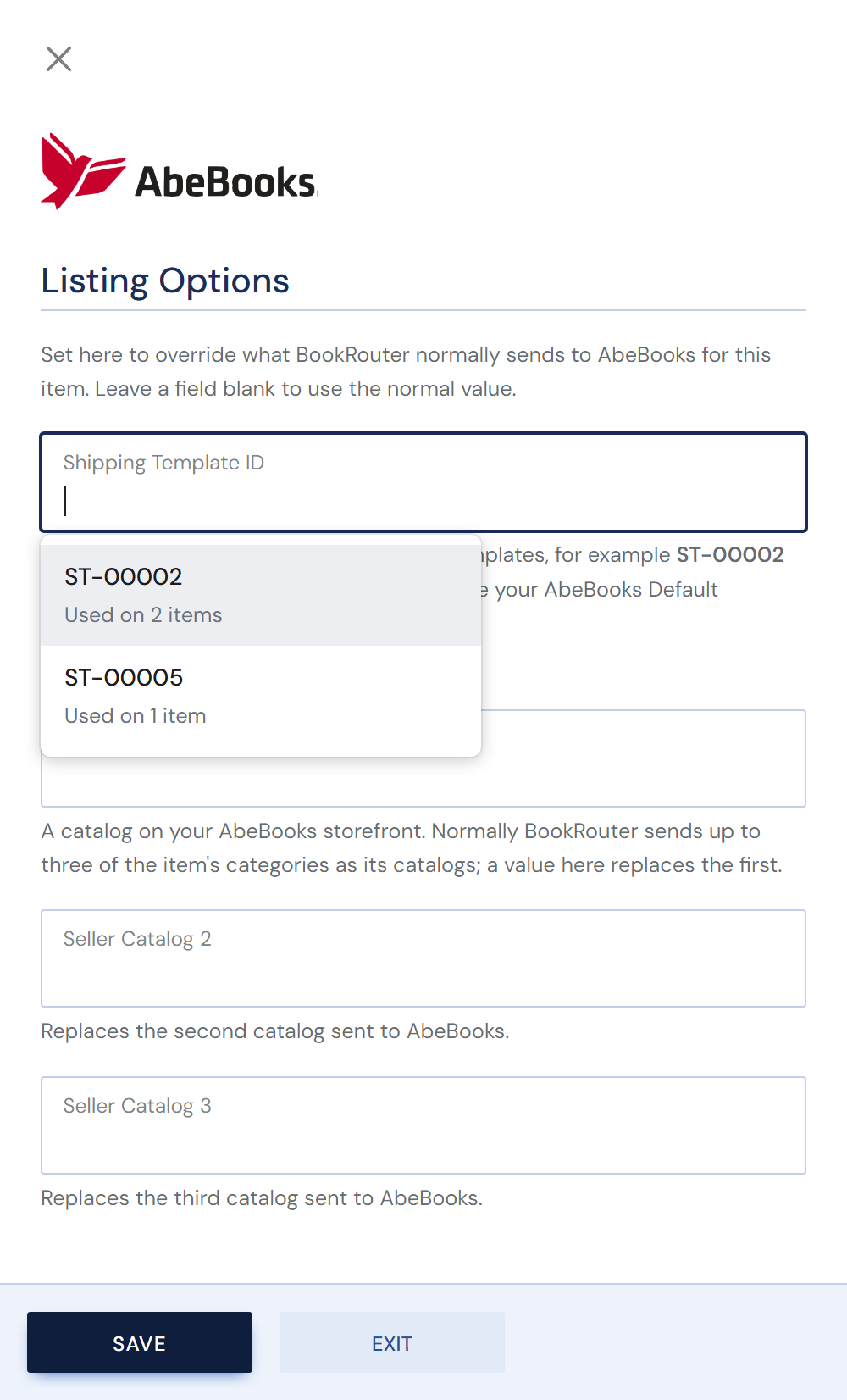
- IDs you have already used on other items appear in a list when you click into the box, with how many items use each.
- The template must exist in the AbeBooks account BookRouter uploads to.
- To check AbeBooks applied it, look at the template on your AbeBooks Shipping templates page: it shows how many listings are assigned to it.
- Clear the field to put the item back on your Default Template.
Seller Catalogs 1 to 3
Seller catalogs group your books on your AbeBooks storefront, where buyers can browse by catalog. AbeBooks takes up to three catalogs per listing.
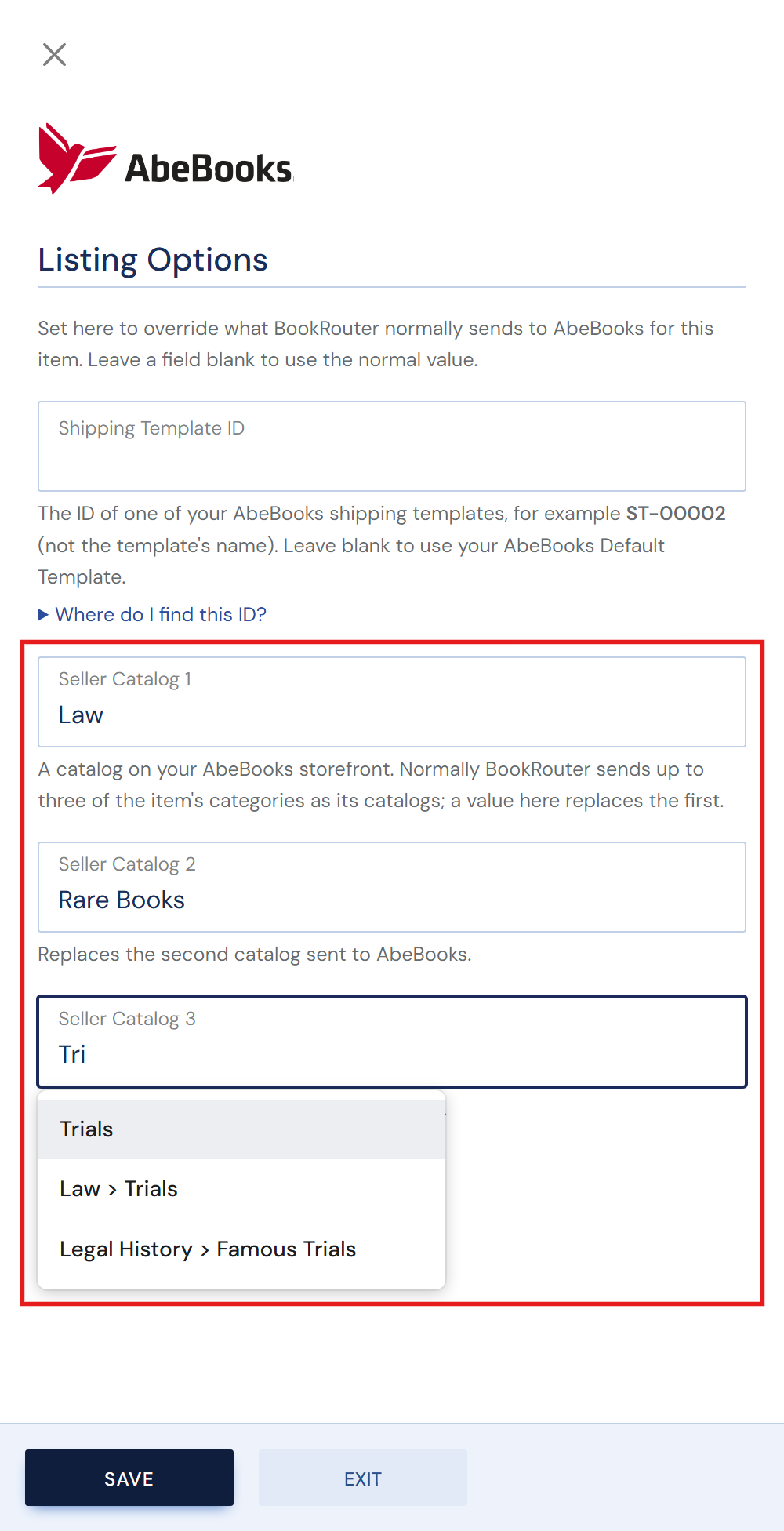
- Automatically, BookRouter sends the item's categories as its catalogs, up to three: an item in your Law and Rare Books categories goes into those two AbeBooks catalogs. Only active, top-level categories are sent; subcategories and website-only categories are not.
- For one item, type catalog names into Seller Catalog 1, 2 or 3 in the AbeBooks panel. Each one you fill replaces that position's automatic catalog; the ones you leave blank stay automatic. Your category names are suggested as you type, but any name is accepted, so a catalog can exist on AbeBooks without being a category on your website.
- For many items at once, add them to the category with Bulk Edit (see Bulk add items to a catalog by their IDs; the same steps work for categories). Each item then carries that category to AbeBooks as one of its catalogs.
Questions
My listings reach AbeBooks, but no AbeBooks orders show up in BookRouter.
Your API key is almost certainly allowed inventory FTP only. At AbeBooks, open API & FTP Credentials, choose Authorized Services and tick Order Update API for the key (Step 2). Nothing changes in BookRouter: orders start downloading at the next check. If any orders were missed meanwhile, contact us and we will fetch them.
Do I have to tell AbeBooks that my files now come from BookRouter?
Only if AbeBooks set your account up for another program's file format. New sellers, and sellers who only ever listed by hand, do not (Step 1).
Only two of my three seller catalogs are filled on AbeBooks.
The item is in two top-level categories, so two catalogs are sent automatically. Add the item to a third category, or type a third catalog into Seller Catalog 3 in its AbeBooks panel.