

Don't see BookRouter™ when you log in? See How to Access BookRouter™
BookRouter™ is the home for everything you do with your Bibliopolis account: cataloging and managing inventory, routing your books to marketplaces, receiving and reviewing your orders, processing payments, and understanding your business through reports.
Finding Your Way Around: There are two key components to BookRouter™ navigation. 1) The Dashboard provides sales at a glance, open orders, marketplace status, and anything that needs attention and 2) The persistent top and left navigation areas that exist on every page.
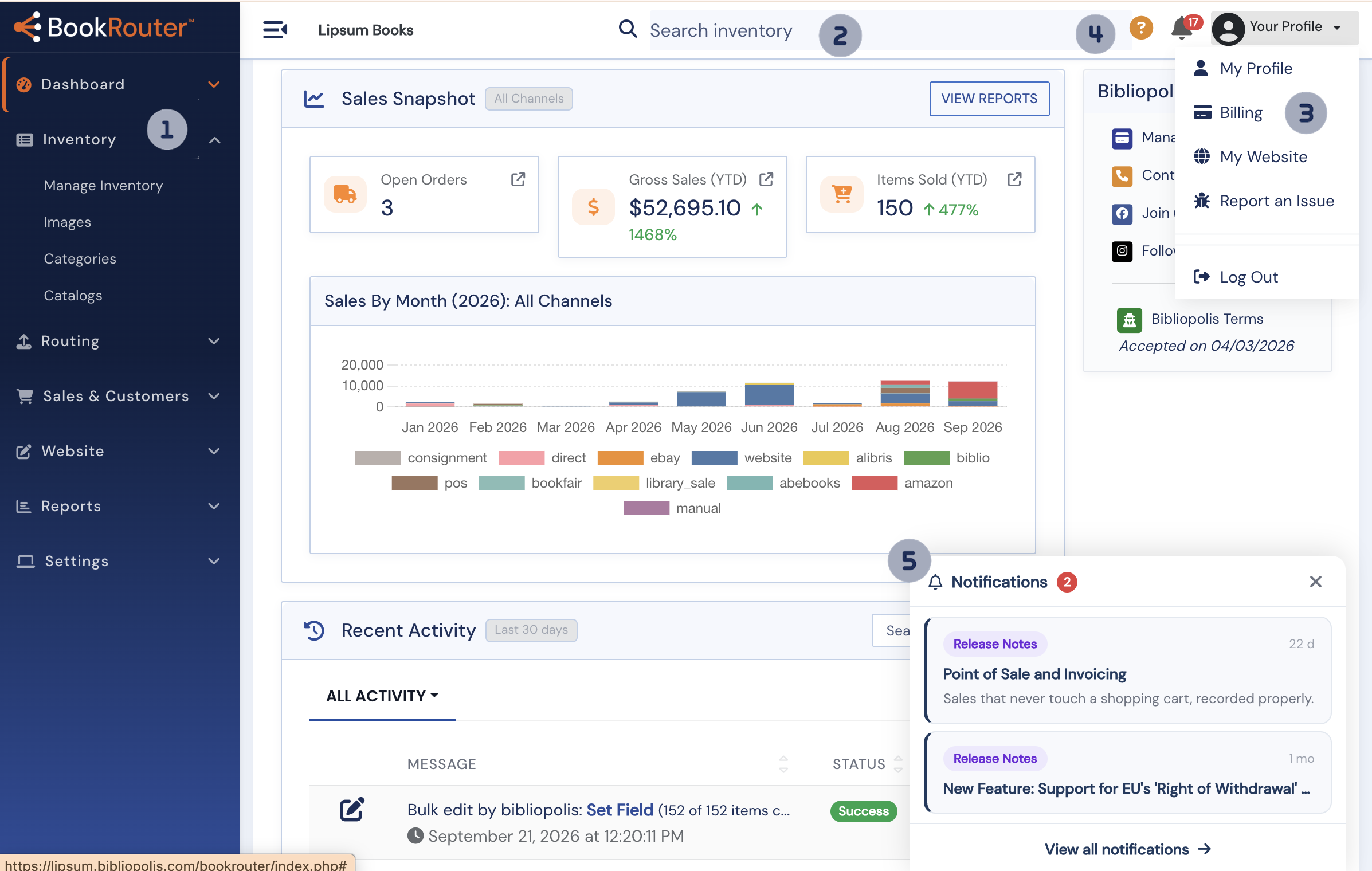
This article describes that latter. The numbered sections of the image below contain the primary methods of navigating BookRouter™. The Navigation Menu, Inventory Search, Help Center, Profile Menu and Notification Drawer. Don't forget to also take A tour of the BookRouter™ dashboard.
The Navigation Menu
The sidebar is organized into sections: Dashboard, Inventory, Website (for clients with a Bibliopolis website), Sales & Customers, Reports, Routing, and Settings. Sections expand to show their pages; the page you are on stays highlighted. On smaller screens the menu collapses behind the menu button in the top bar.
- Inventory: Where your books live. Add and edit items with ISBN lookup, manage images, organize categories and catalogs, upload from your cataloguing software, and edit in bulk. Start with Adding and editing books in your inventory.
- Routing: Sends your inventory to AbeBooks, Amazon, eBay, Biblio, Alibris, and more, on a schedule, with per-marketplace pricing rules. See Connecting a marketplace.
- Sales & Customers: Sales covers website orders, the point-of-sale register, and invoicing, with every channel landing in one sales history. See Selling an item and recording a sale and Point of Sale: taking a payment. Customers puts each customer on one page: purchases, invoices, want lists, wishlists, inquiries, carts, and mailing-list subscriptions.
- Website: Runs your full ecommerce site — content and layout management, merchandising, and marketing tools. It's the one toolset sold separately; every other section is fully functional on all BookRouter™ service levels. See website pricing.
- Reports: Reports show sales by channel, inventory value, customer activity, taxes collected, and more. See Reports in the new admin.
- Settings: The settings menu provides access to manage admin users, payment methods, shipping configuration, preferences for inventory management and other customizable features, third-party connections and much more. For those with websites, your site layouts, templating and branding are managed here.
Inventory Search
The search box at the top of the menu is the fastest way to access individual listings Start typing any keyword, title, author, etc. and matching listings will appear immediately below the search box. Choose the listing to go directly to the manage inventory editor for that item.
Your Profile Menu
Click your username at the top right to open the account menu: your profile, Billing (for the account owner), the admin-users area, and the toggle for switching between the new BookRouter admin and the legacy view where both are installed. See How do I access the new BookRouter from my current account?
Help & Support
Click the question mark in the orange circle to see a context sensitive list of related articles and a link to open the home page of our Help Center.
Notification Drawer
The bell icon collects announcements and account notices. The ? icon opens the Help Center; on pages that have help articles written for them, it lists those articles directly.
Looking for more information about BookRouter™ navigation?
The Dashboard is yourr landing page—sales at a glance, open orders, marketplace status, and anything that needs attention. See A tour of the BookRouter™ dashboard for more information