

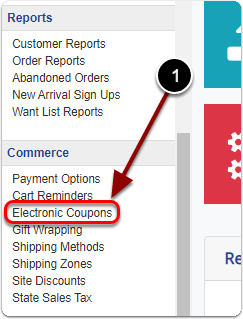
This article is for shops still using the legacy admin (the Control Panel). Electronic coupons live under Commerce › Electronic Coupons. Using the new BookRouter™ admin? See Coupons: discount codes for your website instead.
The kinds of coupon
- Flat rate: a set amount off the order, accepted like cash. It works on every order that meets the coupon's minimum amount or quantity.
- Percentage off: a percentage off the items in the order. Items that are already discounted are not discounted twice (see below).
- Free shipping: free shipping to every zone, or to one zone only (for example, only within the US).
- Combined: tick both Flat Rate Calculation and Percentage Calculation (or either with free shipping) under Coupon Calculation Method to offer, for example, “25% off + Free Shipping” or “$10 off + Free Shipping”.
- Customer specific: assigned to one customer's email address, either with a code or automatic. This is one way to give a trade discount, as long as the customer always orders with the same email address.
- Automatic: applied in the cart with no code. Leave the email blank to give it to every customer, or enter one customer's email. Only one automatic coupon is allowed per email address.
Only one coupon can be used per order. If a customer types a code while an automatic coupon applies, checkout keeps whichever saves the customer more.
Creating a coupon
- Click Electronic Coupons under the Commerce heading of the Control Panel menu.
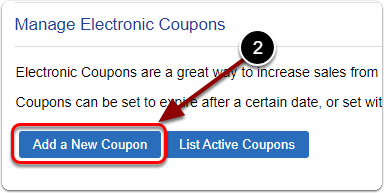
- Click Add a New Coupon.
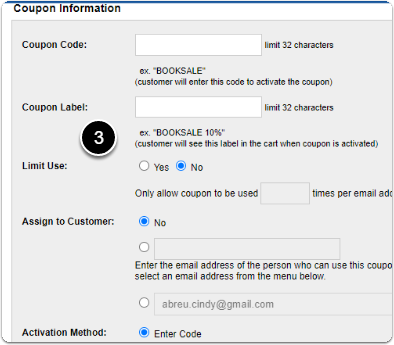
- Fill in the coupon's information, date range, calculation method and requirements.
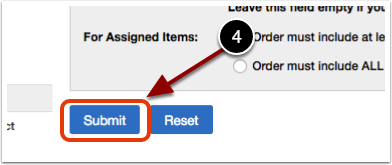
- Click Submit at the bottom of the page.
A coupon applies to every eligible item in your inventory unless you have excluded the item (see below). You can advertise it with a site-wide message.
Editing a coupon
- Click Electronic Coupons under Commerce.
- Under Active Coupons, click the coupon's Edit link.
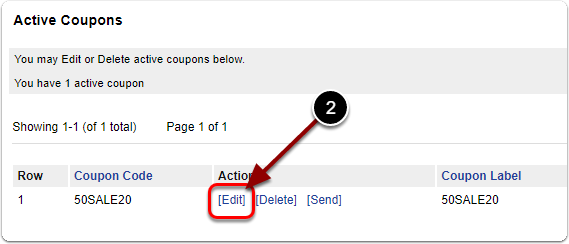
- Change the information, date range, calculation method or requirements.
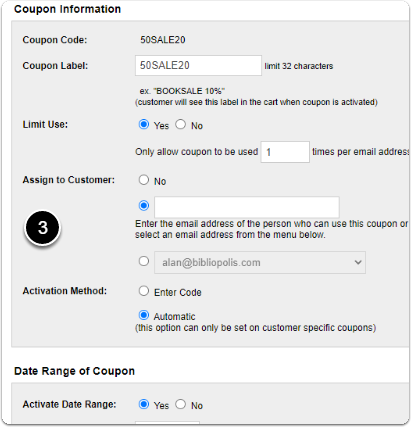
- Scroll down and click Submit.
The coupon code itself cannot be changed once the coupon is created. To use a different code, create a new coupon. Codes are not case sensitive: BOOKSALE and booksale are the same code.
Deleting a coupon
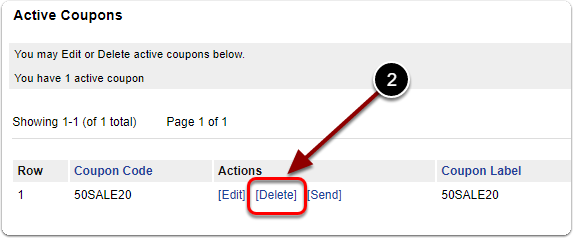
Click Electronic Coupons under Commerce, then click the coupon's Delete link under Active Coupons.
Emailing a coupon to a customer
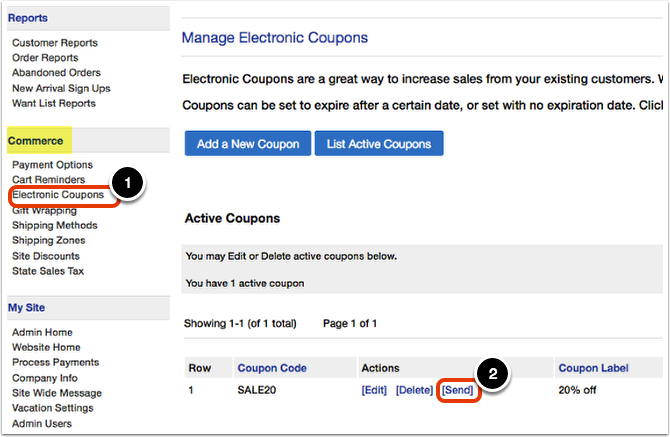
- Click Electronic Coupons under Commerce, then click Send beside the coupon.
- Next to To:, type the customer's email address or pick one from the menu, then adjust the message.
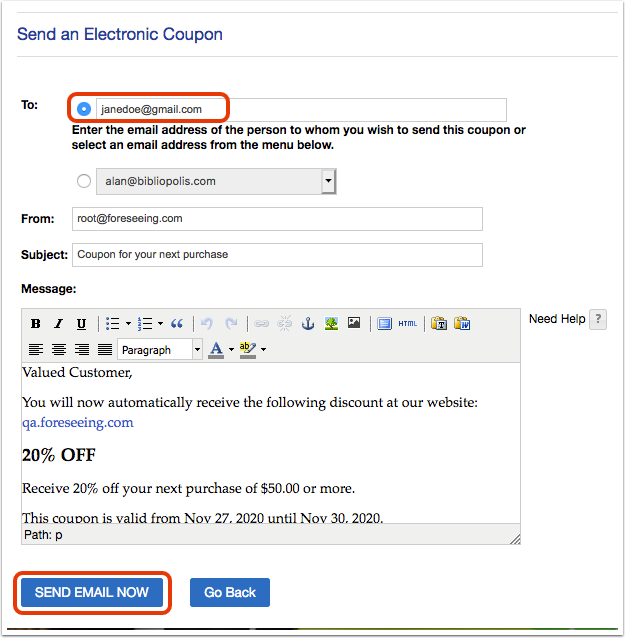
- Click Send Email Now.
Coupon settings
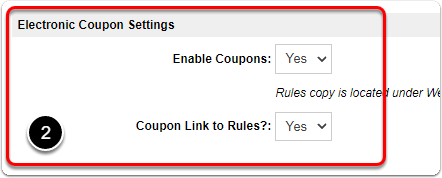
Whether the coupon box shows in your checkout is set under Commerce › Payment Options, in the Electronic Coupon Settings section. Change the settings there and click Save.
Common questions
How do customers redeem a coupon?
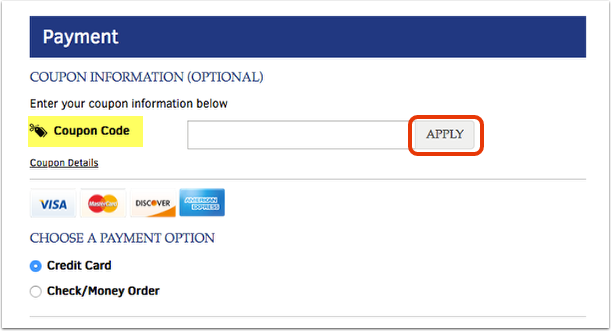
At the Payment step of checkout, the customer types the code into the Coupon Code box and clicks Apply. A valid code takes effect on the order straight away.
What happens to an item that is already discounted?
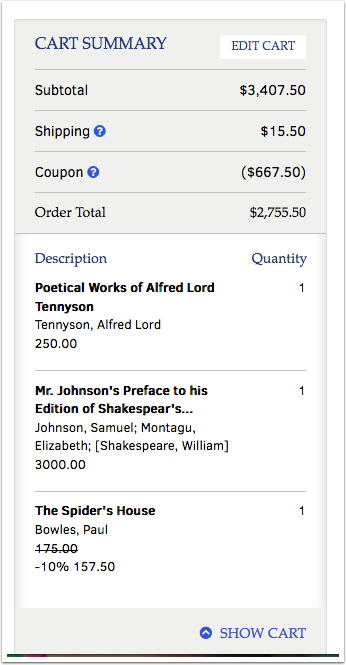
Discounts are never added together. A percentage-off coupon tops an item up to the coupon's percentage and no further. If the item's own discount is already bigger than the coupon, the coupon does not touch it.
For example, a customer buys three items: $250.00, $3,000.00, and a $175.00 item already on sale at 10% off ($157.50). With a 20% off coupon, the discount is $50.00 + $600.00 + $17.50 (the extra 10% on the sale item) = $667.50.
Can I keep an item out of every discount?
Yes, for percentage-off coupons and site discounts. In Manage Inventory, open the item, go to the Pricing tab, set Allow Discounts to No and click Save Changes.
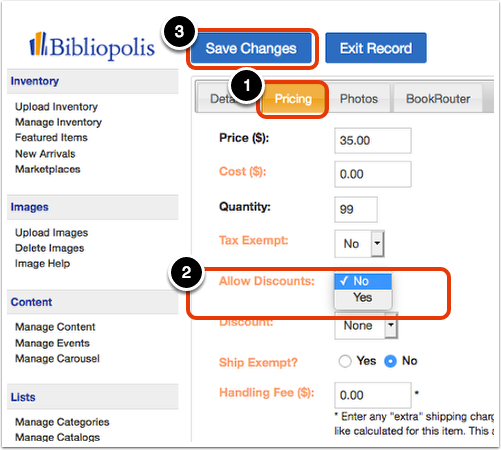
This does not affect flat-rate coupons, which are accepted like cash.