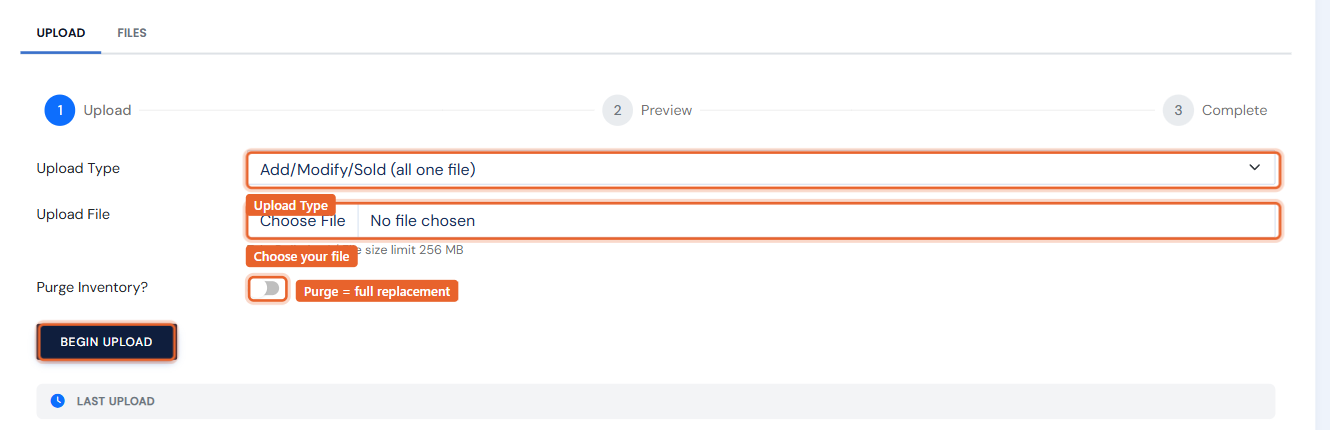
A Sold Books upload marks items in your file as sold in one batch — handy after a fair or an off-platform sale. It uses the same Upload Inventory tool, with the Upload Type set to Sold Books.
- Click Upload Inventory under the Inventory heading in the left menu, and stay on the Upload tab.
- Set Upload Type to Sold Books.
- Click Choose File next to Upload File and pick your tab-delimited file.
- Click Begin Upload, then confirm on the Preview step.