

The Files tab on the Upload Inventory page lists the inventory files you have recently uploaded, so you can re-import, download, or delete them.
- Click Upload Inventory under the Inventory heading in the left menu.
- Click the Files tab.
- Each row shows the file name, size, date, and status. Use the Actions icons to re-import, download, or delete a file. Use the Search box to find one by name.
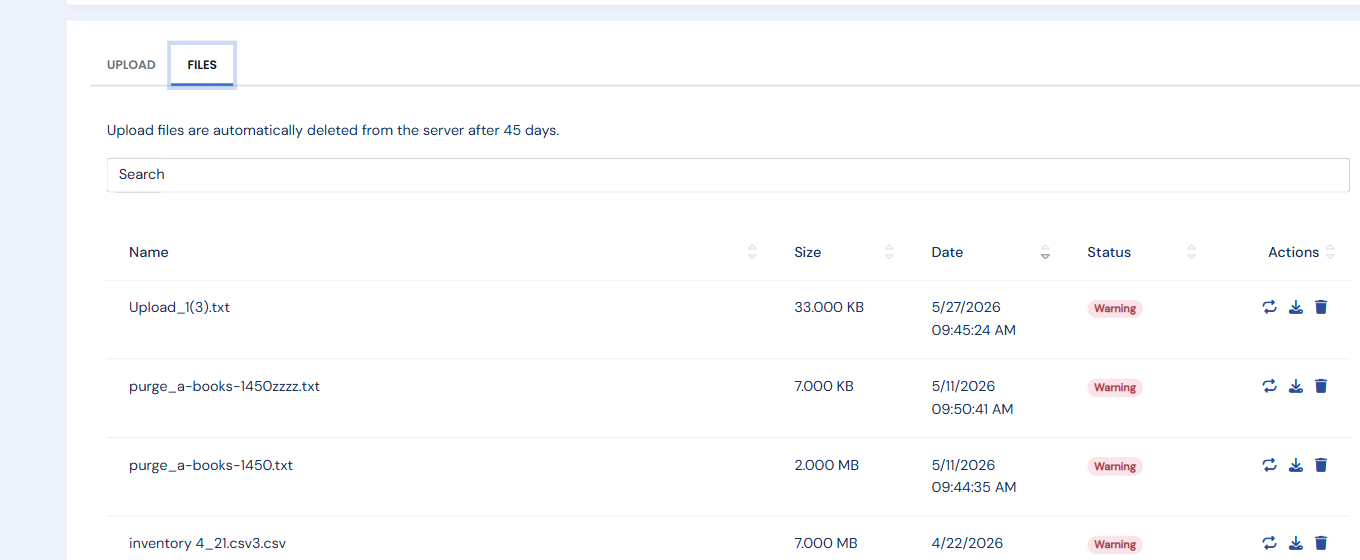
Note: uploaded files are automatically removed from the server after 45 days.