

Uploading a file is the fastest way to add or update many items at once. BookRouter reads a tab-delimited file, shows you a preview, and then commits the changes.
Uploading a file
- Click Upload Inventory under the Inventory heading in the left menu, and stay on the Upload tab.
- Leave Upload Type on Add/Modify/Sold (all one file) for a normal update.
- Click Choose File next to Upload File and pick your tab-delimited file (up to 256 MB).
- Click Begin Upload. The wizard advances to Preview, where you confirm the changes, and then to Complete.
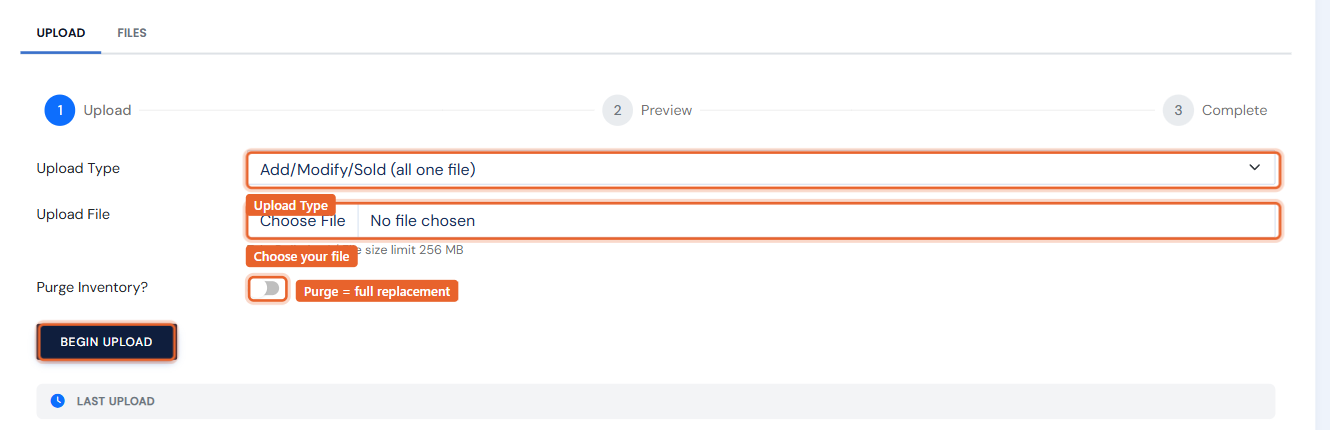
Purge uploads. If your file contains your entire in-stock inventory, turn on Purge Inventory?. A purge temporarily unpublishes everything, then republishes only the items in the file (quantity 1 or more); items missing from the file stay unpublished (treated as sold/removed). As a safeguard, a purge file covering less than half of your live inventory is automatically blocked and you are notified — this prevents a truncated file from wiping your listings. Leave the toggle off for ordinary add/update files.