

Over time, images for sold or deleted items pile up on the server. The Remove Images tool finds them so you can clear them out — and it never deletes anything until you confirm.
Step one: Open Remove Images
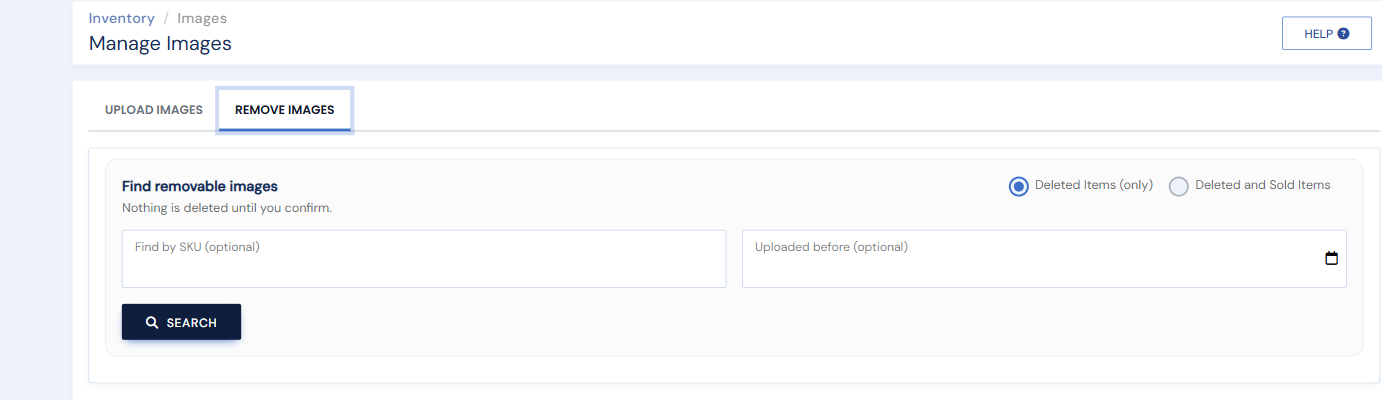
Click Images under the Inventory heading in the left menu, then click the Remove Images tab.
Step two: Set your search
- Choose what to look at: Deleted Items (only), or Deleted and Sold Items.
- Optionally narrow by Find by SKU, or set Uploaded before a date (click the calendar icon) to catch only older files — for example, everything sold or deleted more than two years ago.
- Click Search.
Step three: Review and delete
Review the results — you see each image before anything happens. Tick the ones you want to remove and click Delete Checked, or use the Delete All dropdown to remove everything matching your search. Deletion only affects image files; it does not change your inventory records.