

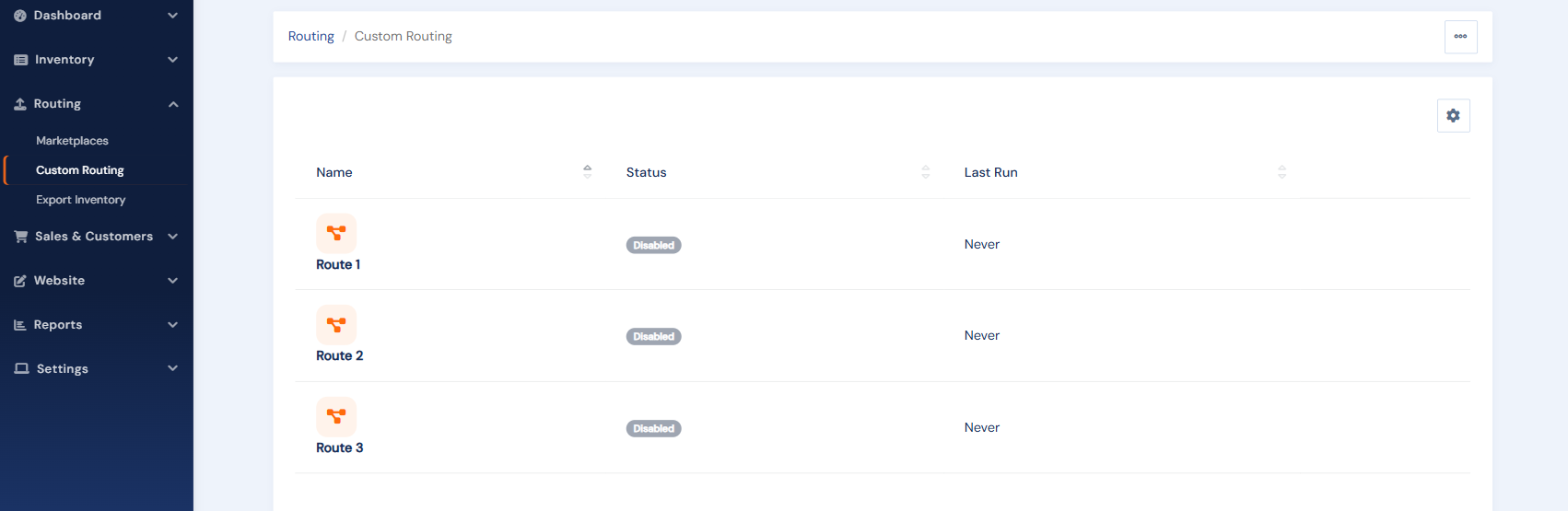
Custom routes send your inventory to destinations beyond the standard marketplaces: a specialty listing service, a co-op site, or anyone who can receive an inventory file via File Transfer Protocol (FTP). Your account includes three configurable routes, found at Routing › Custom Routing.
BookRouter™ does not currently offer API access to individual account data. FTP is the only supported method of file transfer.
Setting up a route
- Open a route and enter the destination's FTP credentials (connect type, server, username, password, folder) under Credentials. If the destination is one of the known presets (such as Ageless Literature or Chrislands), pick it from the Presets panel and the connection details prefill.
- Set the Pricing Strategy and Sync Rules like any marketplace.
- Set Routing Status to Enabled and save. Use Trigger Purge to queue a full file when the destination is ready to receive.
 File formats
Custom Routes send the standard BookRouter format by default (BookHound 8 and BookRouter™ Extended formats are also available). The full column-by-column specification, including how images are handled. See BookRouter™ Standard Export Format and Image Handling Specifications.
Processing the BookRouter™ file Bibliopolis cannot guarantee that a third-party destination will support custom routes. It is up to you to coordinate with them. We are happy to answer any questions they may have, however. You can email support@bibliopolis.com with the words "custom routing" in the subject line or you can point them to the article linked above.