

Invoicing lets you sell now and collect later: libraries and institutions, dealers, appraisals, anyone you bill on terms. Invoices are made on the same register as Point of Sale, so the steps will feel familiar.
Turning invoicing on
Invoicing is off until an Admin turns it on: Sales & Customers › Point of Sale › POS Settings, Enable invoicing. The same page sets the default payment terms and the invoice numbering. See Point of Sale settings.
Creating an invoice
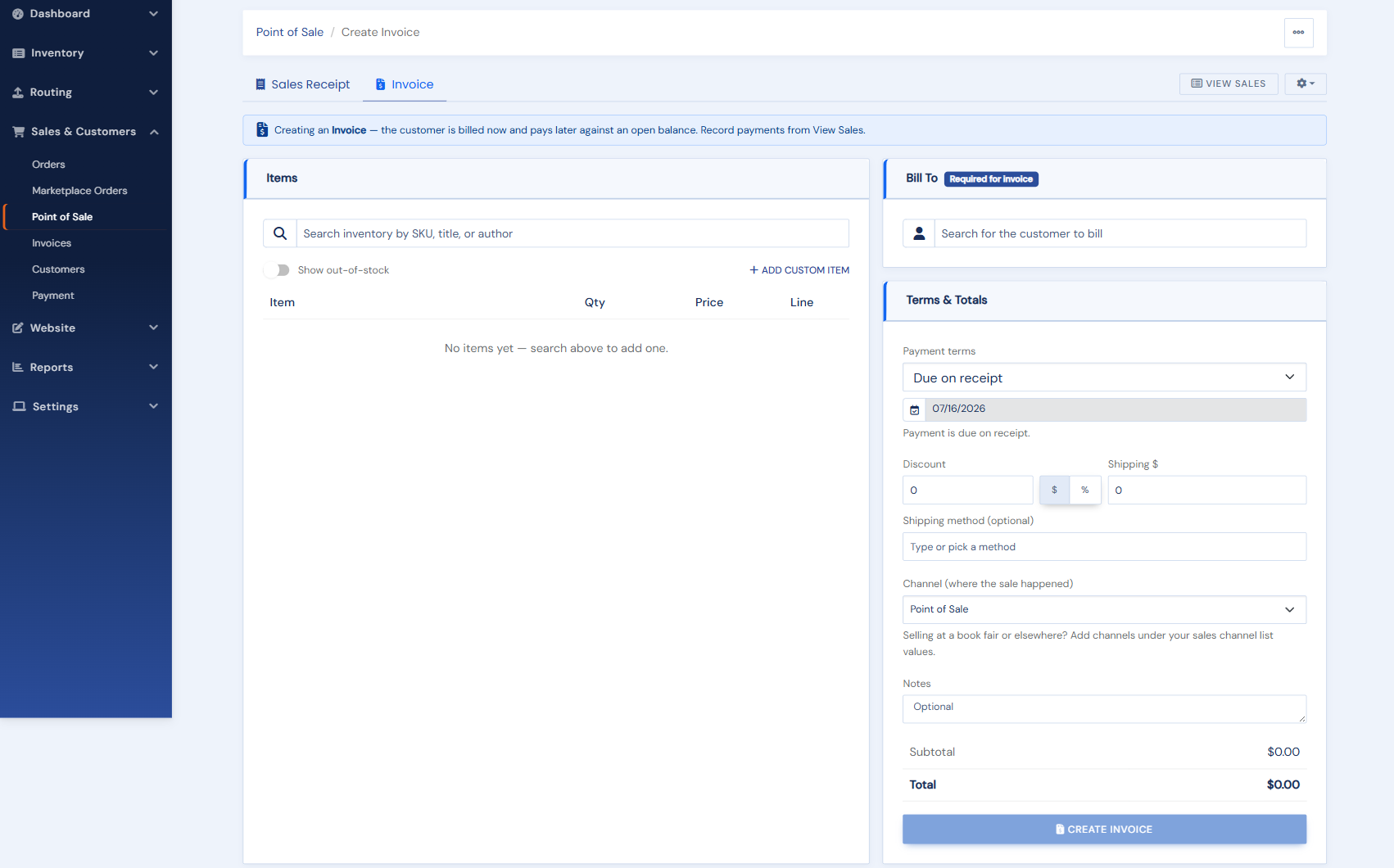
- Open Sales & Customers › Point of Sale › Create Invoice (or the Invoice tab on the register). From a customer's page, New invoice on their Invoices tab opens it with the customer filled in.
- Add the items, exactly as for a sale: inventory items, and custom items for services such as appraisals or search fees. Discounts and shipping work the same way.
- Set the Bill To customer. An invoice needs one (a name or an email at least): it is who owes the balance. Use New customer if they are not on file yet.
- Choose the payment terms (Due on receipt, Net 15, Net 30, Net 60). The due date is worked out from them; pick Custom date to set your own.
- Check the tax. An invoice is taxed at the rate for the customer's state (their shipping address, else their billing address). There is no tax when you do not collect in that state, when the customer is outside the US, or when the customer is marked tax exempt. A customer with no address on file is taxed at your store's rate. The Charge sales tax switch takes the tax off this one invoice.
- Add notes for the customer: payment instructions, a reference number, a thank-you. They print in the Notes section of the invoice.
- Create the invoice. It gets a number (INV-…), the items come out of stock, and you can view, print, download or email it straight away.
Recording payments
Open the invoice from View Sales (or Sales & Customers › Invoices, the customer's Invoices tab, or the Open Invoices report) and click Record payment. Enter the amount and how it was paid; partial payments are fine and the balance keeps track. Paid by card over the phone? Turn on Charge a card now in the same panel and the payment goes through your gateway, so it can be refunded to the card later.
You can also let the customer pay online: email the invoice with a pay link, or send a reminder with a Pay Now button. See Getting paid: pay links, reminders and payment requests.
Changing an invoice
Edit details (the pencil in View Sales, or More › Edit details in the invoice window) changes the customer's name and email, the terms, the due date and the notes, at any time until the invoice is cancelled or refunded. The notes box holds the whole note, so what you save replaces what was there.
Items and amounts cannot be edited after the invoice is made, because stock and payments depend on them. To change the goods, cancel the invoice and create a new one.
Cancelling or refunding an invoice
- Open or partly paid: use Cancel invoice. Any payment already taken is refunded, the invoice is marked Cancelled and its lines leave your sales reports. Return items to stock is ticked for you: untick it if the books are not coming back to the shelf, or they will go straight back on sale.
- Paid in full: use Refund, which works as it does for a receipt (full or partial). See Undoing a sale.
Both need an Admin, or the Refunds & Card Management permission.
Rang it up as a receipt by mistake?
A paid receipt can be turned into an invoice for a customer, keeping the same sale and payment. See Turning a receipt into an invoice. A sale recorded by hand with the Sell Item button can also become a paid invoice, from All Sales.
Keeping on top of what is owed
The Open Invoices report (Reports › Sales › Open Invoices) shows everything outstanding, with an aging breakdown (current, 1 to 30, 31 to 60, 61 to 90 and over 90 days past due). Each customer's page flags open or overdue invoices at the top.