

Antiqbook changed two things in September 2026. Its FTP server moved, so the FTP username and password you gave us no longer work and your listings stop reaching Antiqbook until you enter the new ones. And Antiqbook opened a webservice: give BookRouter™ your Antiqbook API key and it downloads your Antiqbook orders and marks the sold items across your other venues, exactly as it does for AbeBooks, Amazon, Biblio and eBay.
Do the FTP part first, and soon. Until the new FTP details are saved, every upload to Antiqbook fails. Nothing is lost: your listings at Antiqbook stay as they were, and the first successful upload afterwards sends everything that changed in the meantime.
What you will need
- Your Antiqbook seller login (the one you use at antiqbook.com).
- About ten minutes. Both parts are done at Antiqbook, then pasted into BookRouter.
Part 1: Activate FTP on Antiqbook's new server
- Sign in at antiqbook.com and open the Seller Area (the Bookseller Service Center). Under Manage your stock in the left menu, click Upload File.
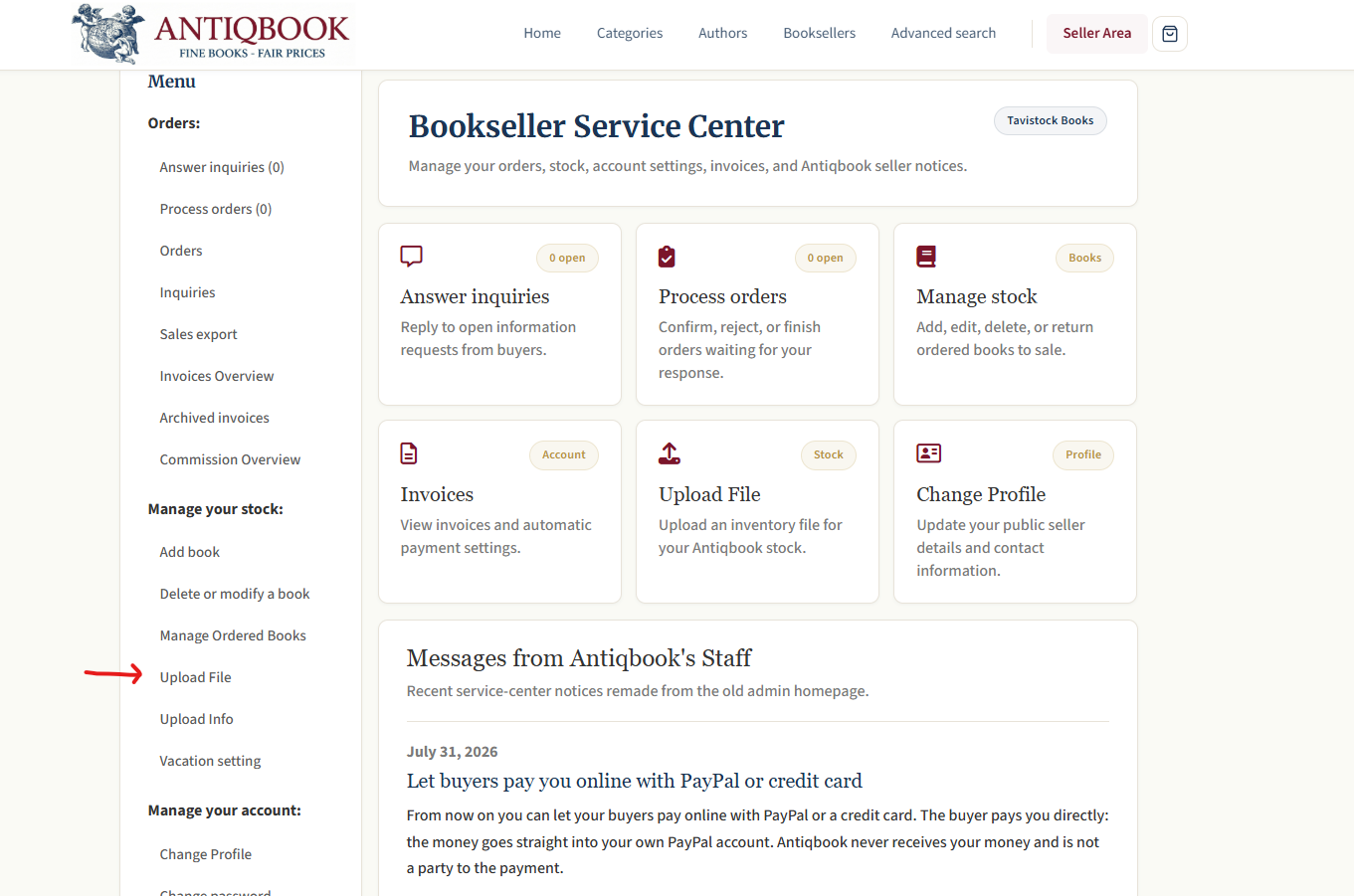
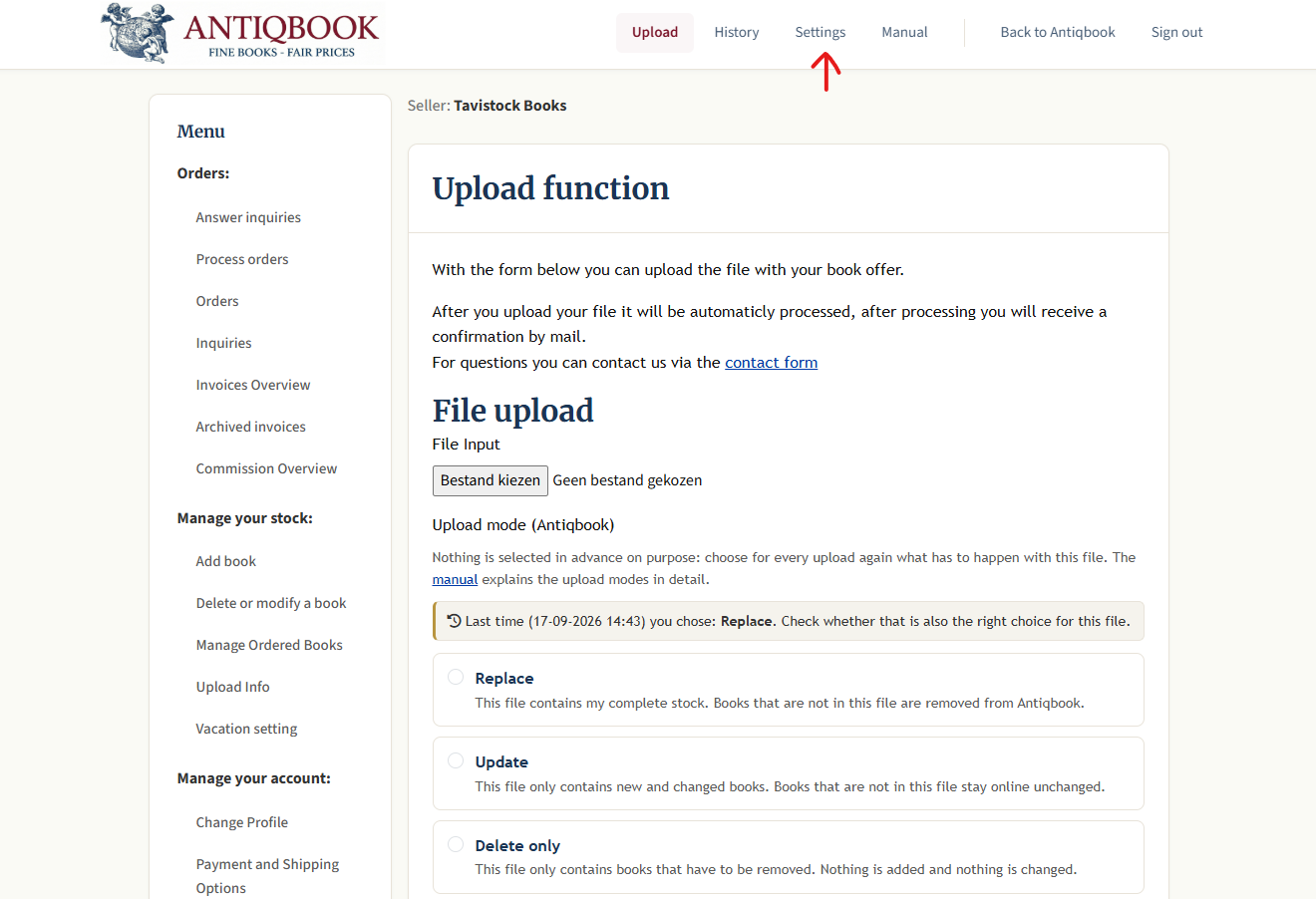
- The upload tool opens on Antiqbook's new server, data.antiqbook.com. Click Settings in the top bar.
- Open the FTP settings tab.
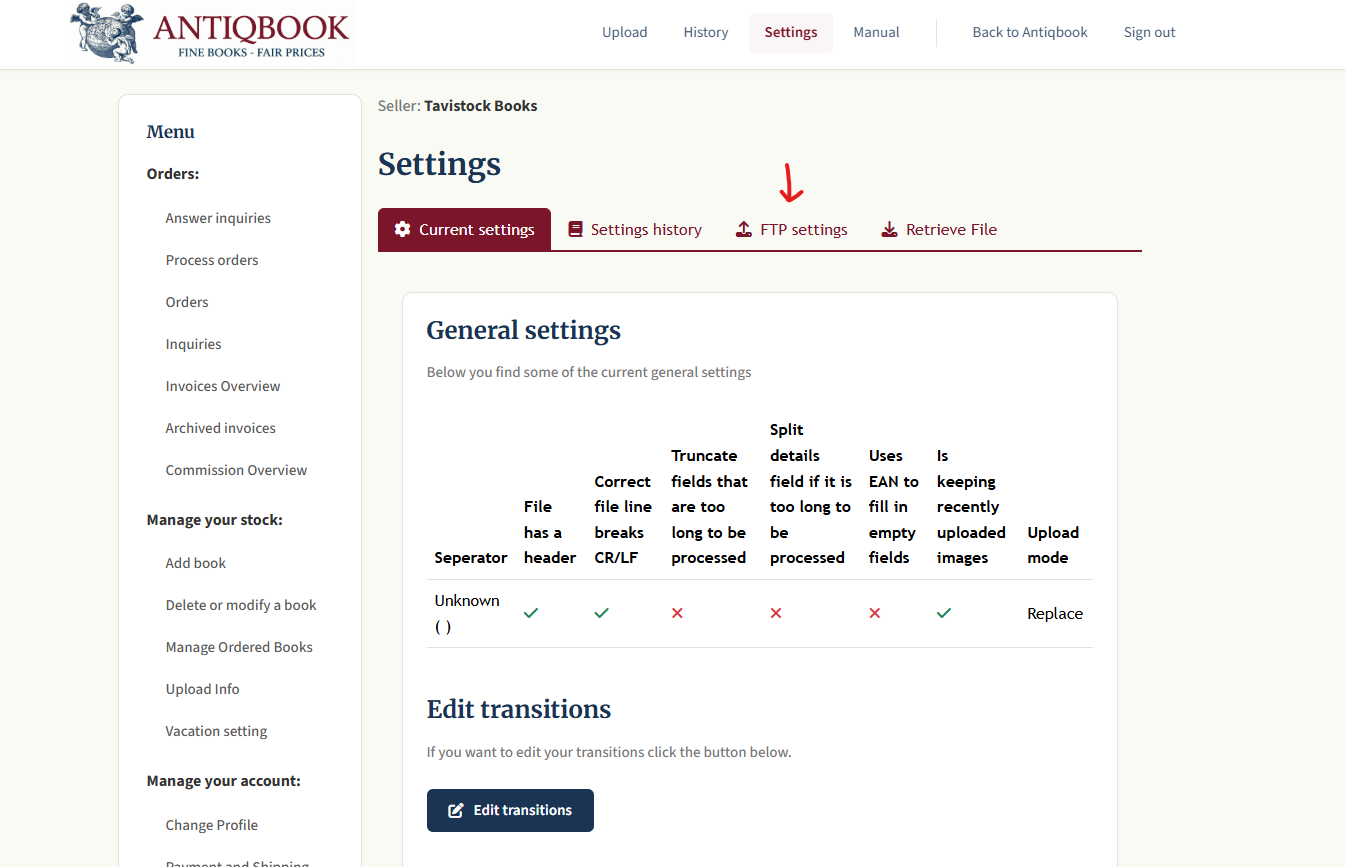
- If the tab offers to activate FTP, do that once. It then shows the three details BookRouter needs: the server (data.antiqbook.com), your FTP username and your FTP password. Copy the username and password exactly as shown.
These are new credentials, not the ones you used before and not your antiqbook.com login. If you also upload to Antiqbook yourself with an FTP program, update it with the same details.
Part 2: Enter the new FTP details in BookRouter
In BookRouter
- Open Routing › Marketplaces and click Antiqbook.
- Under FTP Settings, check that the server reads data.antiqbook.com. If it still says ftp.antiqbook.com, change it.
- Enter the new FTP username and FTP password from Part 1.
- Click Test Connection. It should report that the connection succeeded.
- Click Save.
In the legacy admin
- Open Inventory › Marketplaces and click the Antiqbook bar to open it.
- Set FTP Server to data.antiqbook.com if it still shows the old address.
- Enter the new FTP Username. For the password click Change next to the FTP Password, then paste the new one.
- Click Test Connection, then save the page.
Uploads to Antiqbook resume on the next routing run. There is nothing else to switch on.
Part 3: Find your webservice API key
The API key is separate from the FTP details and lives in your Antiqbook account, not in the upload tool.
- At antiqbook.com, open the Seller Area.
- Under Manage your account in the left menu, click Webservice API key.
- Copy the key. It is a long string of letters and numbers.
Treat the key like a password. Anyone who has it can read your Antiqbook orders and change your listings there.
Part 4: Enter the key in BookRouter
In BookRouter
- On the same Antiqbook page under Routing › Marketplaces, find the Orders from Antiqbook card.
- Paste the key into Antiqbook webservice API key and click Test API key. It should report that Antiqbook accepted the key.
- Set Download Orders to Yes.
- Tick Auto-mark sold items if you want an Antiqbook sale to take the item off your other venues automatically. Leave it off if you would rather record Antiqbook sales yourself.
- Click Save.
In the legacy admin
- In the open Antiqbook bar under Inventory › Marketplaces, find Orders from Antiqbook just below the FTP fields.
- Paste the key into Webservice API key and click Test API key.
- Set Download Orders to Yes, and Automatically mark sold items? to Yes if you want the sold items removed from your other venues.
- Save the page.
What happens next
- BookRouter checks Antiqbook for new orders through the day. Each one arrives with the buyer, the address, the shipping method the buyer chose and the price, and appears with your other marketplace orders (in BookRouter under Sales & Customers › Marketplace Orders).
- With Auto-mark sold on, the sold item is marked sold in your inventory and comes off your other venues on their next routing run.
- Accepting or declining an Antiqbook order still happens at Antiqbook, as before. Antiqbook gives you ten days from the order to do that.
- Your listings keep travelling to Antiqbook by FTP. The key is only used for orders.
If something does not work
Test Connection fails. The usual cause is that FTP has not been activated on the new server yet (Part 1, step 4), or the old password was pasted. The FTP password is not your antiqbook.com login password. Check for a stray space at either end.
Test API key says the key is not known. Copy it again from Manage your account › Webservice API key. The FTP settings page does not show it.
Test API key says Antiqbook is limiting requests. Antiqbook allows a set number of requests per day and refuses two identical requests within a few seconds. Wait a minute and try once more.
Uploads had been failing for a while. Nothing needs repairing. Once the new FTP details are saved, the next routing run sends every change made in the meantime. If a listing you expected is still missing at Antiqbook after a day, contact support@bibliopolis.com.
For how order download works across all your venues, see How sold items are removed automatically and What each marketplace can sync.