Billing for hosting is based on the quantity of item's listed on your Bibliopolis site. This includes 'Sold Books'.
'Sold Books' will not be deleted if they are part of a 'Catalog'. The 'Catalog' must be deleted. Deleting a catalog will not delete available items listed in the catalog.
For more information on deleting a catalog read the article:
Purging the entire inventory will not automatically purge your marketplaces. If you do not want to purge your marketplaces, skip to step 4.
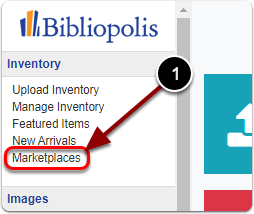
1) Click on 'Marketplaces' under the 'Inventory' heading of the Control Panel.
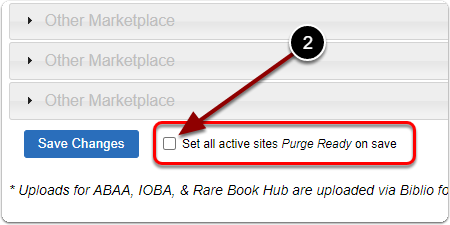
2) Scroll down, next to 'Set all active sites Purge Ready on save' check the box.
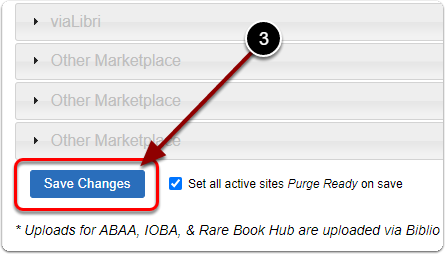
3) Click the 'Save Changes' button.
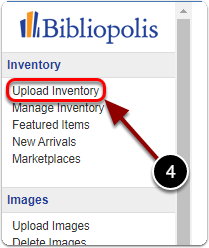
4) Click on 'Upload Inventory' under the 'Inventory' heading of the Control Panel.
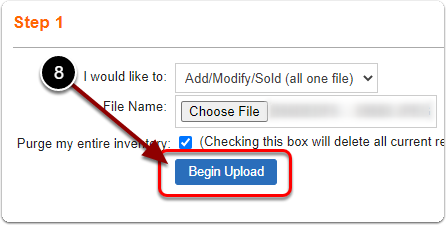
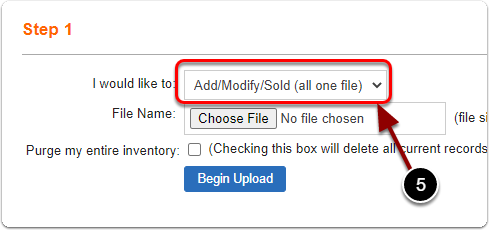
5) Next to 'I would like to' select 'Add/Modify/Sold (all one file)' from the drop-down menu.
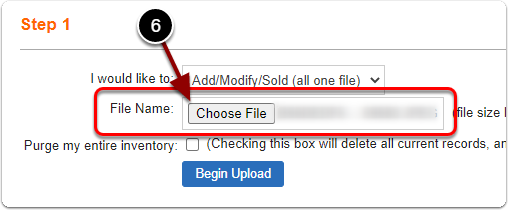
6) Next to 'File Name' click the 'Choose File' button & upload your Tab-Delimited File.
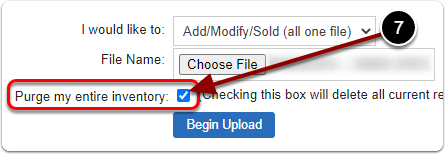
7) Next to 'Purge my entire inventory' check the box.
(Checking this box will delete all current records, and replace them with the data you are about to upload.)
8) Click the 'Begin Upload' button.