

Your data is yours. The Export Data page (Settings › Data Tools › Export My Data) downloads any of it in one place: inventory, orders, customers, subscribers, wants, wishlists, categories, events, and website pages.
How it works
Pick the data type in the left rail, pick a format, optionally limit the export (date ranges, categories, keywords, order statuses, and more depending on the type), choose CSV, Tab, or Excel, and run it. Small exports download immediately; big ones run in the background and land in the Archive tab, where files are kept for 60 days.
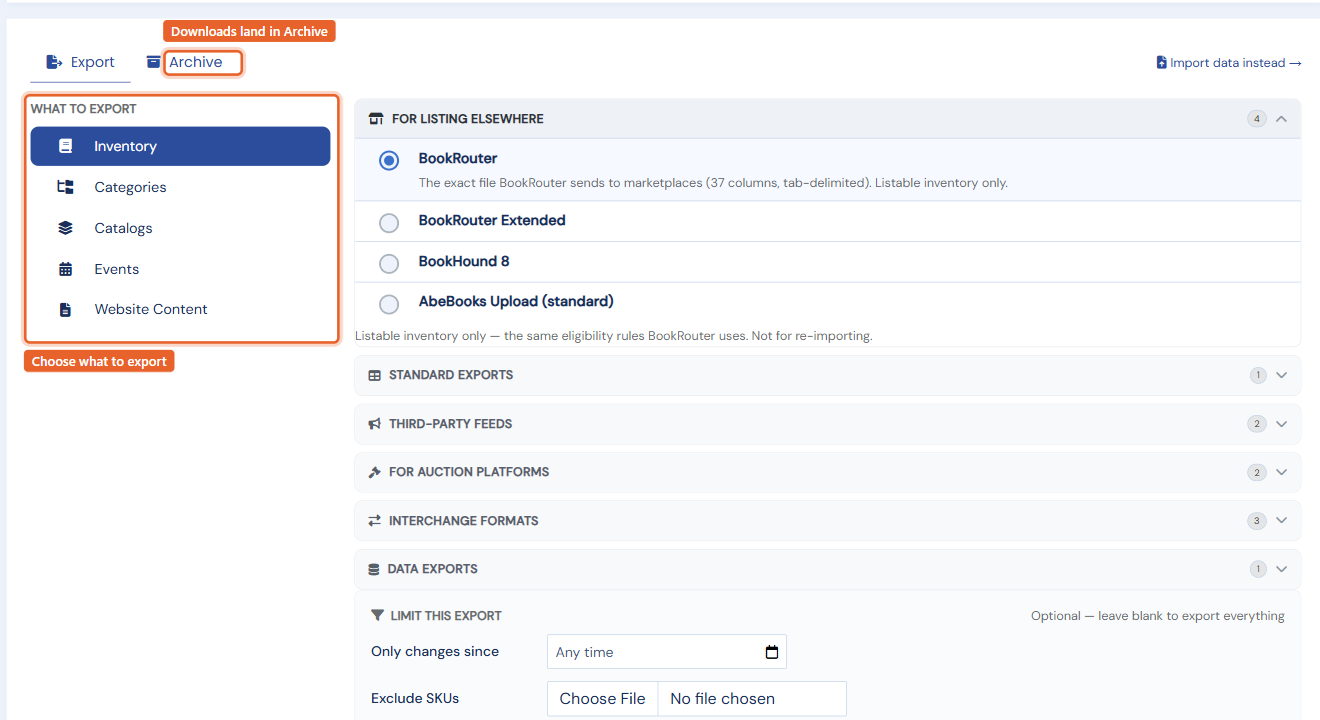
Inventory formats
Inventory offers more than the standard spreadsheet:
- Listing formats (BookRouter, BookRouter Extended, BookHound 8, AbeBooks Standard) produce files other systems ingest, for listing your stock elsewhere or moving between tools.
- Backup exports every field of every item — the belt-and-braces copy to keep locally.
- Product feeds for Google and Facebook live here too; see Product feeds for Google & Facebook.
Exporting from the manage pages
Manage Inventory, Orders, Customers, Wants, and Wishlists all have an Export… item in their gear menu. It exports the full data set or, when your view is filtered, exactly the current results — so "everything matching this search" is one click. These exports always cover the complete result set, never just the visible page.
Going the other way? See Importing data, and for inventory files from your cataloguing software, How do I upload inventory?