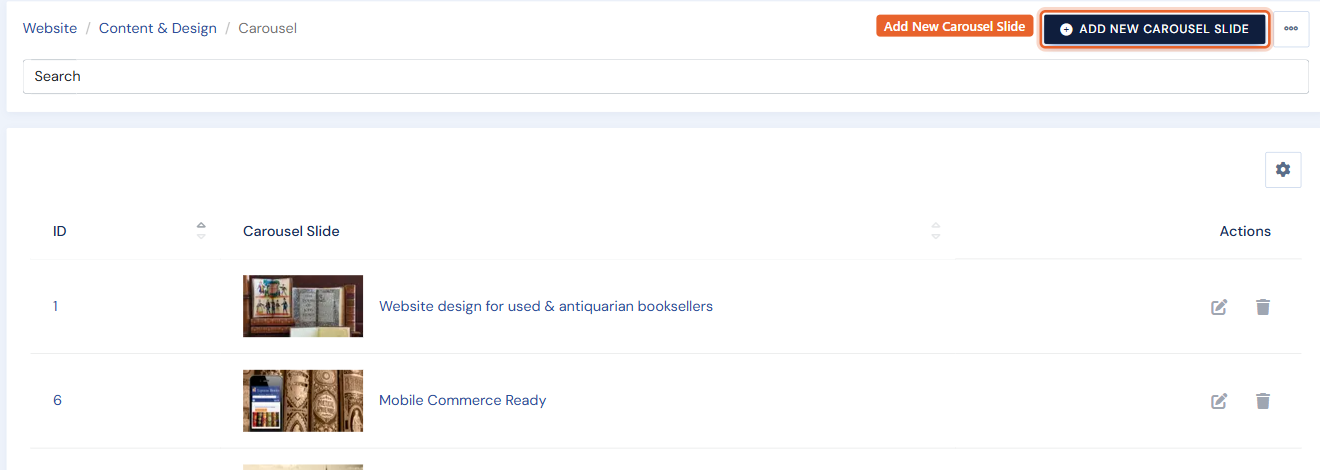
The carousel showcases rotating slides of content and/or inventory on your homepage. It progresses automatically, and customers can pause it or jump to a slide. Find it under Website › Content & Design › Carousel.
Step one: Add a slide
On the Carousel page, click Add New Carousel Slide. Existing slides are listed here with Edit and Delete actions.
Step two: Content
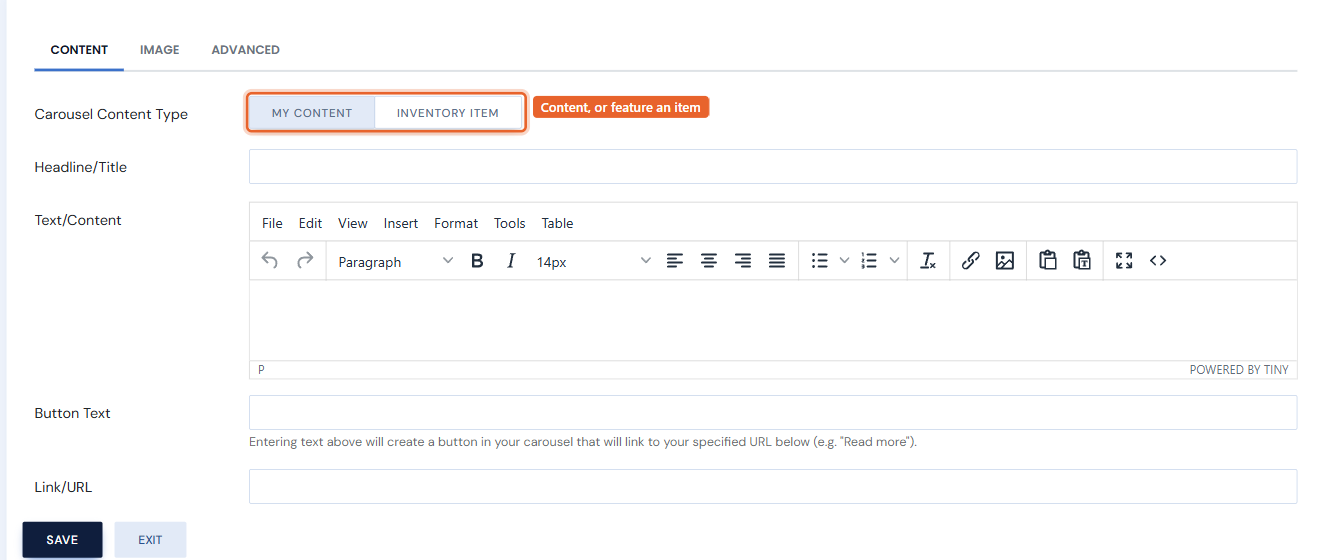
On the Content tab, choose the Carousel Content Type:
- My Content — write your own slide: a headline, body text, and an optional button (add Button Text and a Link/URL to turn it into a call-to-action).
- Inventory Item — feature a specific item from your stock instead.
Then open the Image tab to upload the slide's image.
Step three: Publish and order
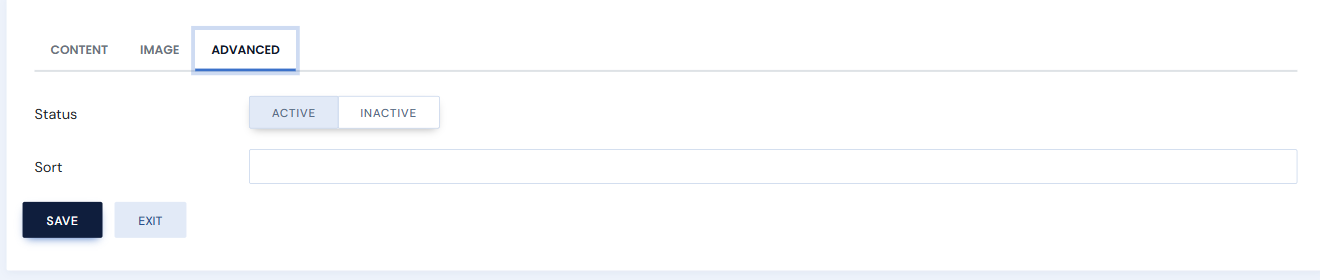
On the Advanced tab, set Status to Active to publish the slide when you save, or Inactive to keep it as a draft. Use Sort (a letter or number) to control the order slides appear in. Click Save.