

These are the steps for the legacy admin (Control Panel). In the new BookRouter™ admin, see Selling on AbeBooks.
Step One: Do you need to contact AbeBooks?
BookRouter™ sends your listings in the AbeBooks Standard upload format, AbeBooks' own default format.
- New to selling on AbeBooks, or you have only ever added listings by hand on the AbeBooks site: you do not need to contact AbeBooks. Go straight to Step Three.
- Already uploading files to AbeBooks from another program, with your AbeBooks account set up for that program's format: ask AbeBooks to switch your account to the Standard upload format (Step Two).
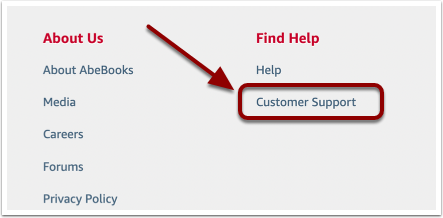
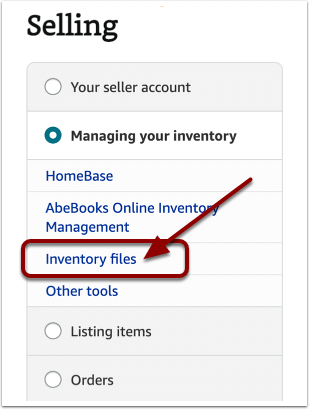
To reach AbeBooks support, log in to your AbeBooks account, scroll down to the footer and click on Customer Support.
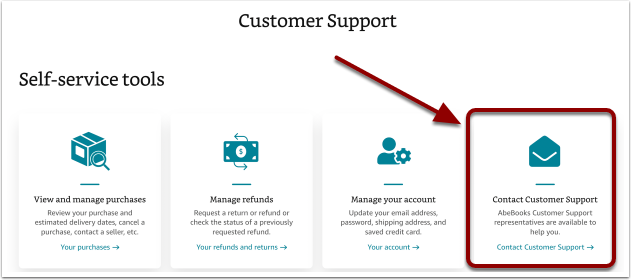
Under the Self-service tools heading, click Contact Customer Support.
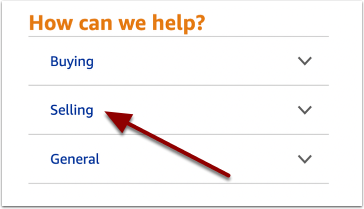
Click Selling.
Click Managing your inventory.
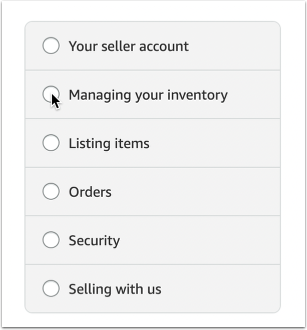
Click Inventory files.
Step Two: Ask AbeBooks to switch your upload format (only if you need to)
Send this message through the web form, or by email to seller@support.abebooks.com from the email address registered with your AbeBooks account:
Dear AbeBooks Support,
My inventory files now come from BookRouter in the AbeBooks Standard upload format, as described here: https://support.abebooks.com/selling/s/article/required-data-structure?language=en_US
Please switch my account to the Standard format and let me know when that is done, so I can start uploading.
My AbeBooks User ID: ________
Thank you,
[your name]
Step Three: Locate your FTP Username and API Key
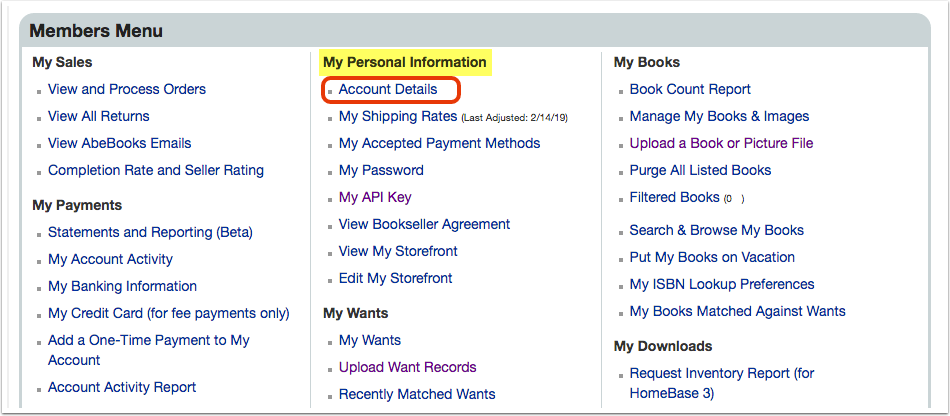
Log in to AbeBooks. Scroll down to the Members Menu, then click Account Details under the My Personal Information heading.
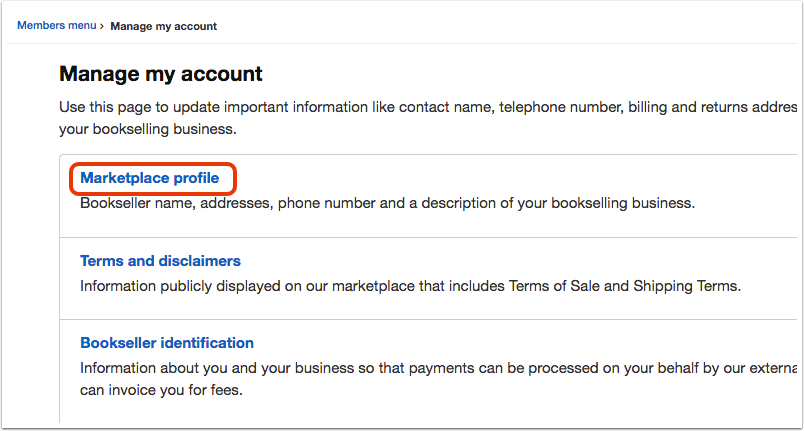
Click on Marketplace Profile.
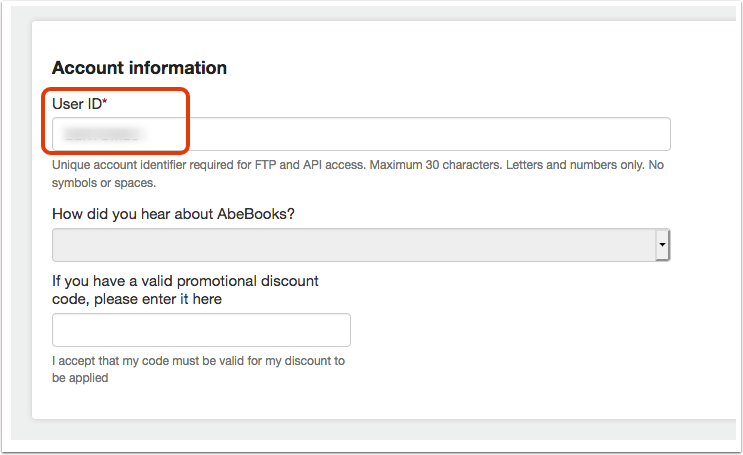
Scroll down to Account information. The User ID is your FTP Username.
Your FTP Password is your AbeBooks API key. In your AbeBooks account, open API & FTP Credentials and copy your key (create one there if you have none). Then edit the key's Authorized Services and make sure both Inventory FTP (your listings) and Order Update API (your orders) are ticked, and save.
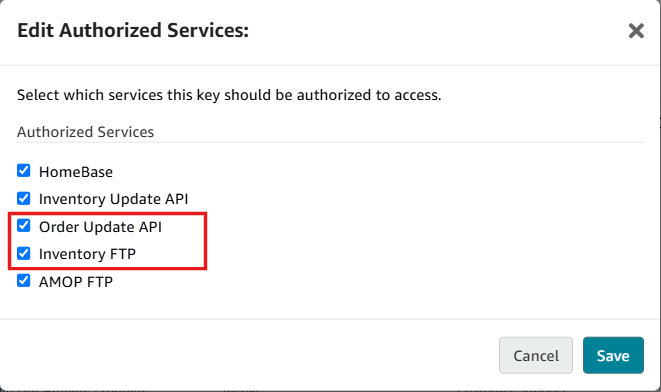
A key with only Inventory FTP ticked still uploads your listings, but no AbeBooks orders download. If you create a new key, the old one stops working right away: enter the new one in Step Four straight after.
Step Four: Enter your FTP Username and API Key
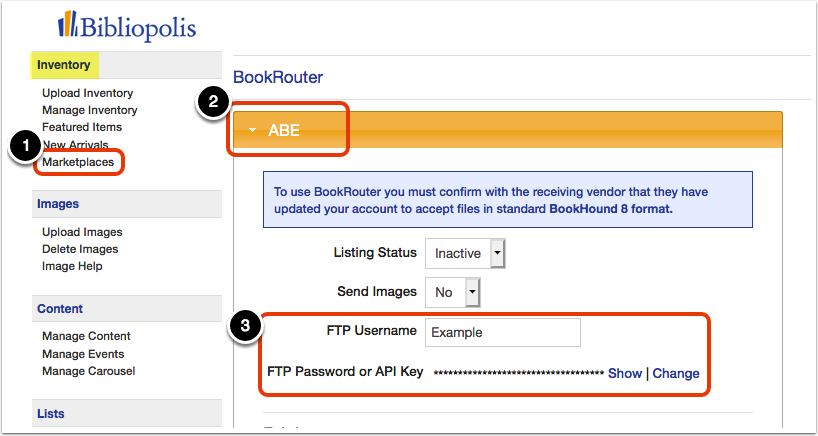
Log in to your Bibliopolis Admin/Control Panel. Click on Marketplaces under the Inventory heading, then click on AbeBooks.
Enter your FTP Username (your User ID) and your API key as the FTP Password. Click Save Changes. If you asked AbeBooks to switch your format (Step Two), leave the Listing Status as Inactive until they confirm.
Step Five: Switch uploads on
When you are ready (and, if you contacted AbeBooks, once they have confirmed the switch), update your Pricing and Export Options preferences and change the following settings:
- Listing Status: set to Active
- Send Images: set to Yes
- Purge Ready: set to Yes (only do this if your website inventory is up to date)
When you are finished, click Save Changes.
Within an hour, our system will send a purge/replace file with all of your active inventory items. Going forward, we will upload adds and deletes as they happen on the website.