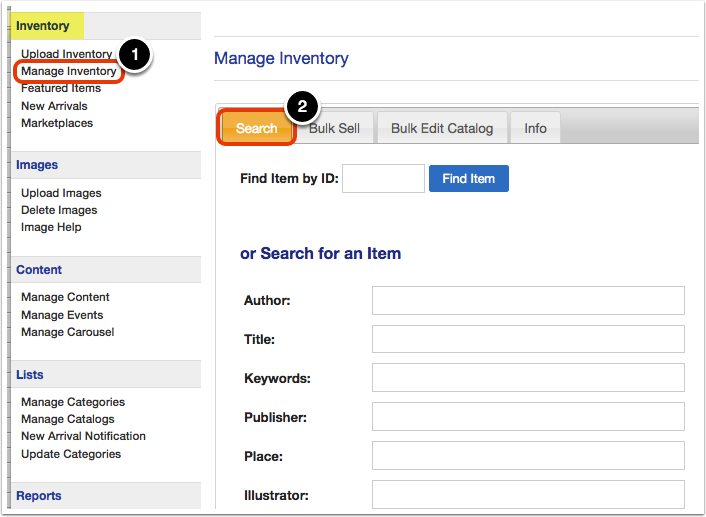
Click on 'Manage Inventory' under the 'Inventory' heading in the Control Panel menu. Then, use the 'Search' tab to find the item.
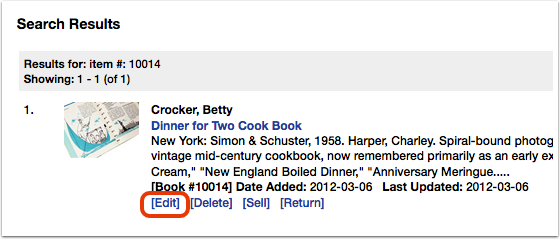
Click 'Edit' below the item.
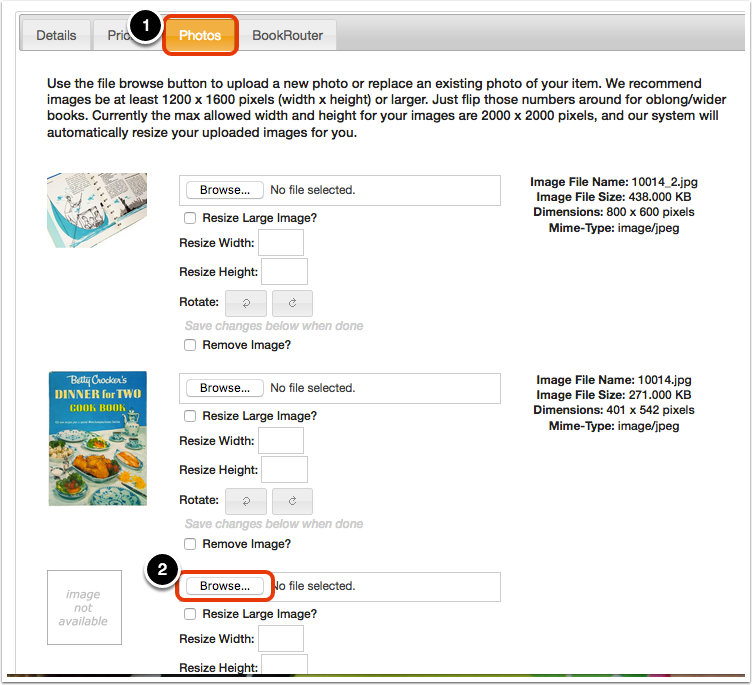
Go to the 'Photos' tab. Click the 'Browse' button next to 'image not available.' (If you do not see that option, first click 'Add Another Photo.')
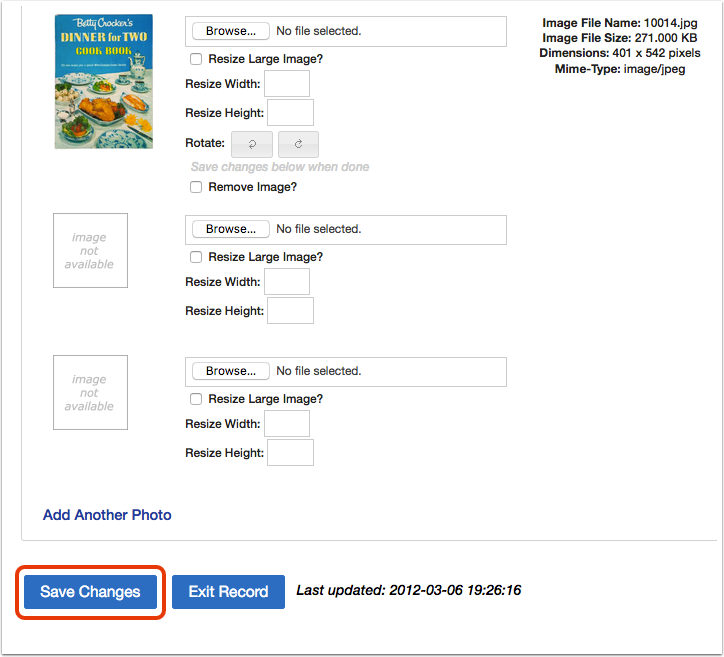
When you are finished adding images, click 'Save Changes.'