
Everything in the BookRouter™ admin is reachable from two places: the left navigation menu and the search box in the top bar. This article covers both, plus the account menu and where to find help.
The left navigation
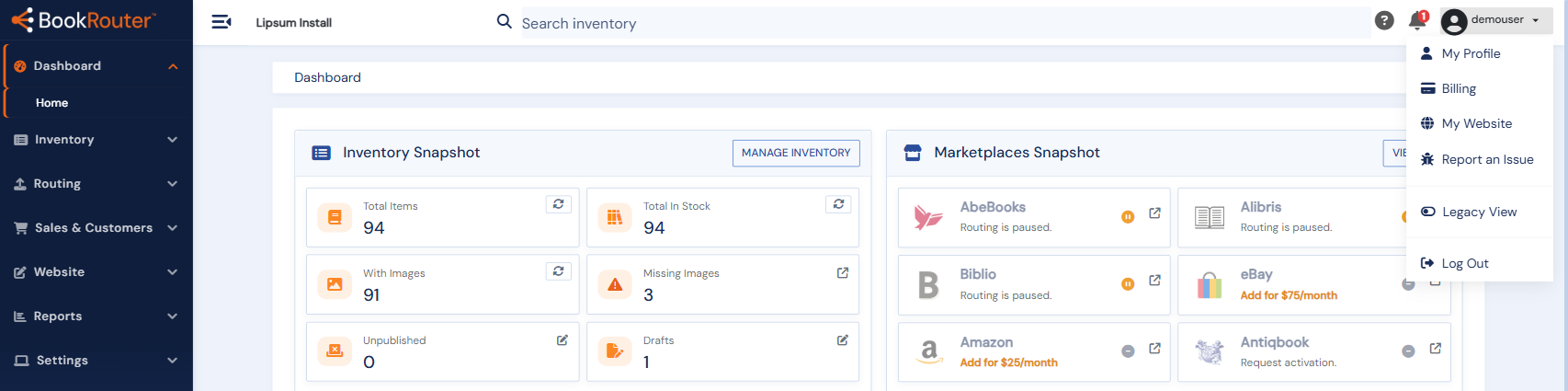
The sidebar is organized into sections: Dashboard, Inventory, Website (for clients with a Bibliopolis website), Sales & Customers, Reports, Routing, and Settings. Sections expand to show their pages; the page you are on stays highlighted. On smaller screens the menu collapses behind the menu button in the top bar.
Menu search
The search box at the top of the menu is the fastest way to move around. Start typing what you want to do ("categories", "orders", "backup") and matching admin pages appear instantly. It searches page names, descriptions, and keywords, so "google" finds the Analytics & Marketing Tags page even though the page name does not contain the word.
The account menu
Click your username at the top right to open the account menu: your profile, Billing (for the account owner), the admin-users area, and the toggle for switching between the new BookRouter admin and the legacy view where both are installed. See How do I access the new BookRouter from my current account?
Notifications and help
The bell icon collects announcements and account notices. The ? icon opens the Help Center; on pages that have help articles written for them, it lists those articles directly.